
On Demand -How to delete roles assigned to an employee
Article g3cU5hAL · sourceFor every employee, the employee roles assigned to them can be assigned or deleted.
In the dashboard :
-
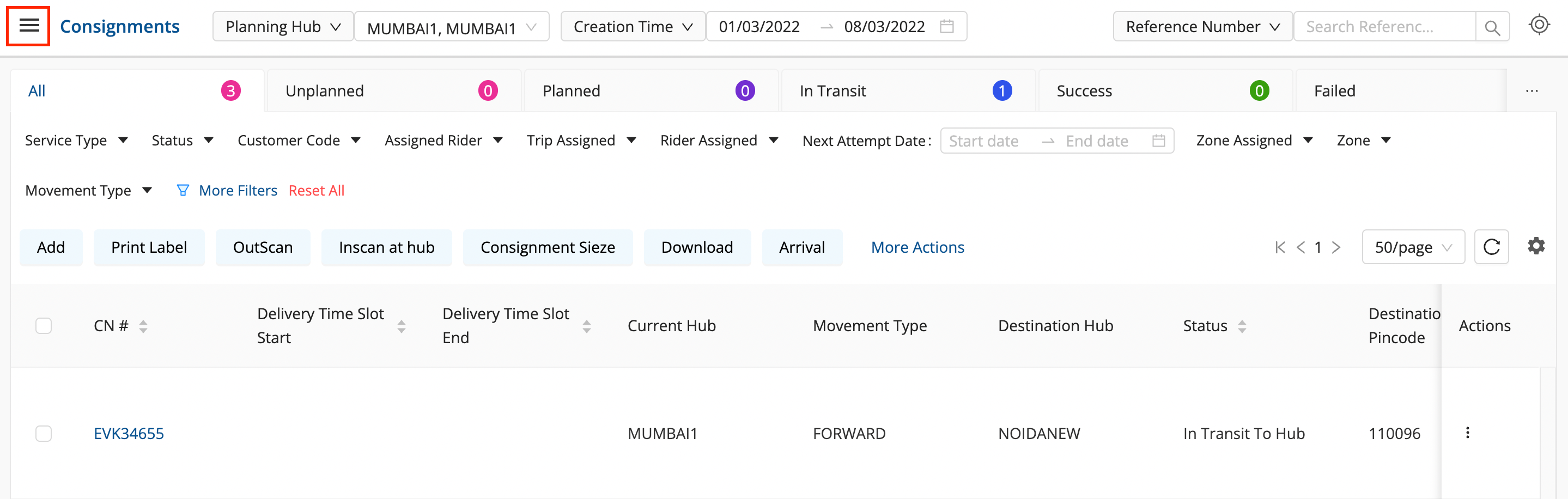
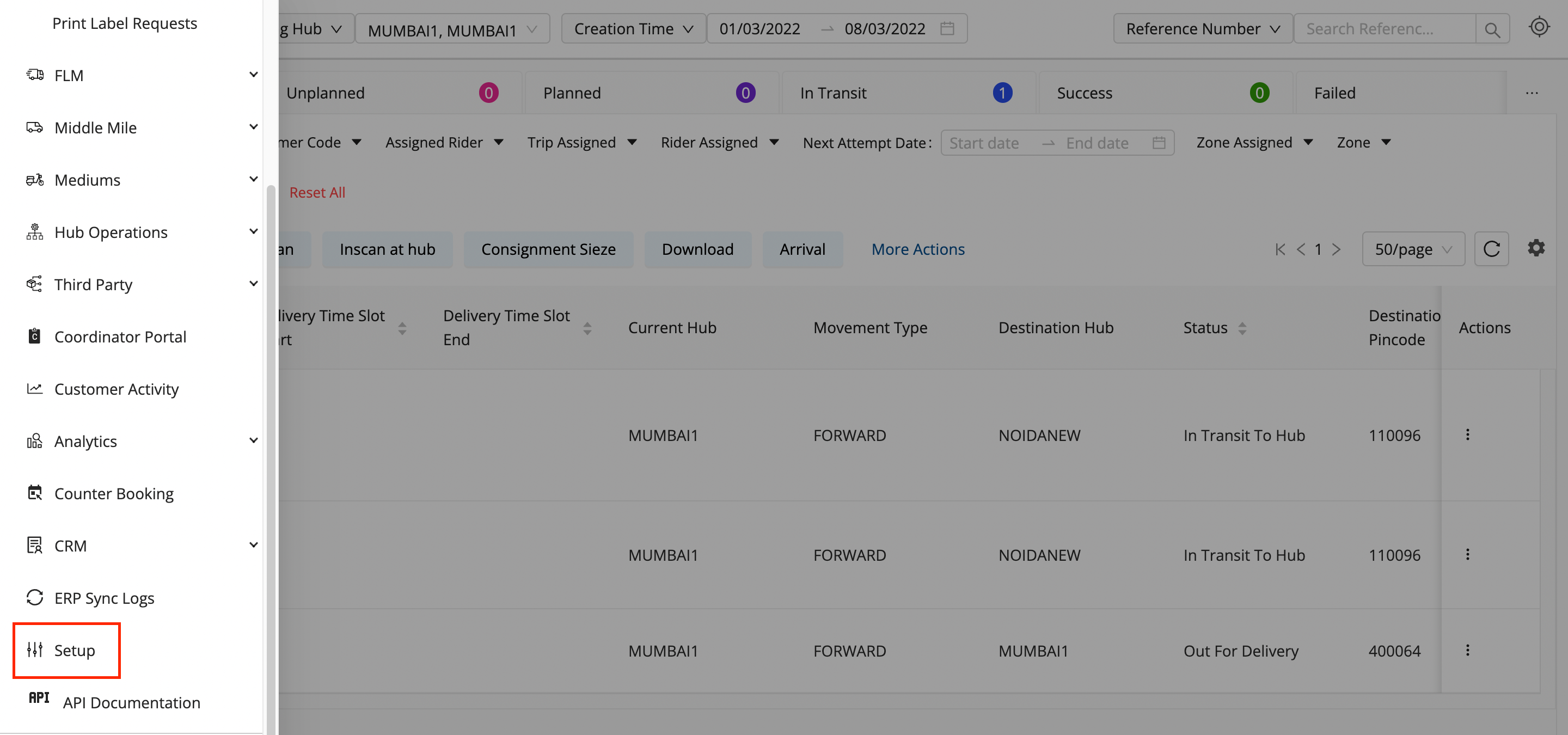
Click on the Hamburger Menu (

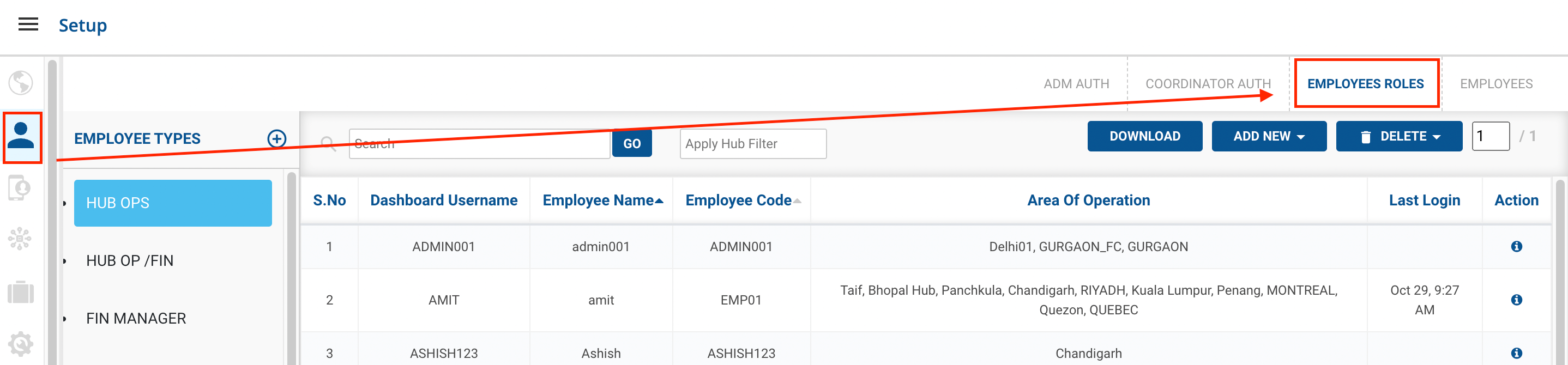
) → Setup → Employees → Employees Roles
-
Select the
Employee Type
where the employee has been given permission.

-
Click on the
DELETE
button.
-
Method 1
Delete Employee
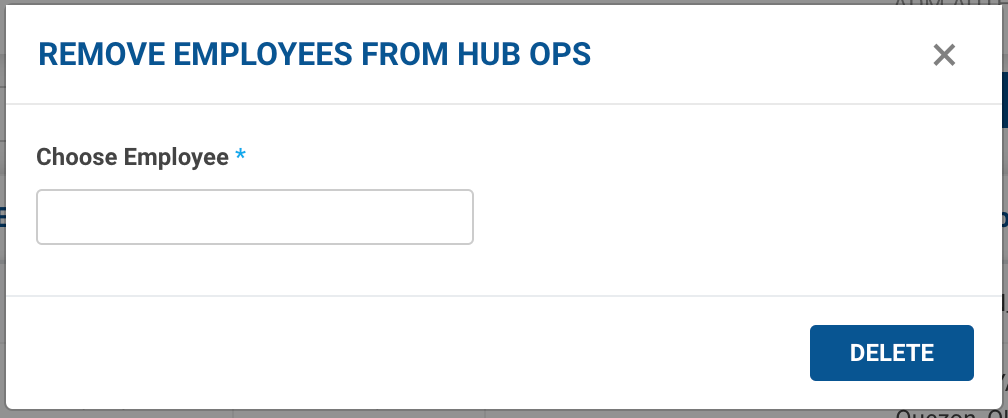
option → A form appears with the required fields to be filled.

-
Fill up the form with the Employee Code/ Name and click on the
Delete
button.
-
Then confirm deleting the Employee Role from the Employee Type by clicking on the
Delete
button and the
Don’t Delete
button if you don’t want to delete the Employee Role.
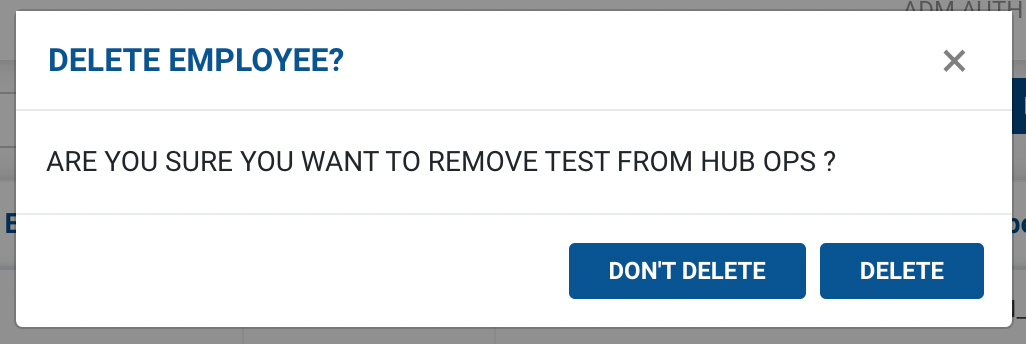
If you pressed on the
Delete
button, you’ve successfully deleted the employee from the particular Employee type and removed the permission given to them.
-
Method 2
Upload Excel
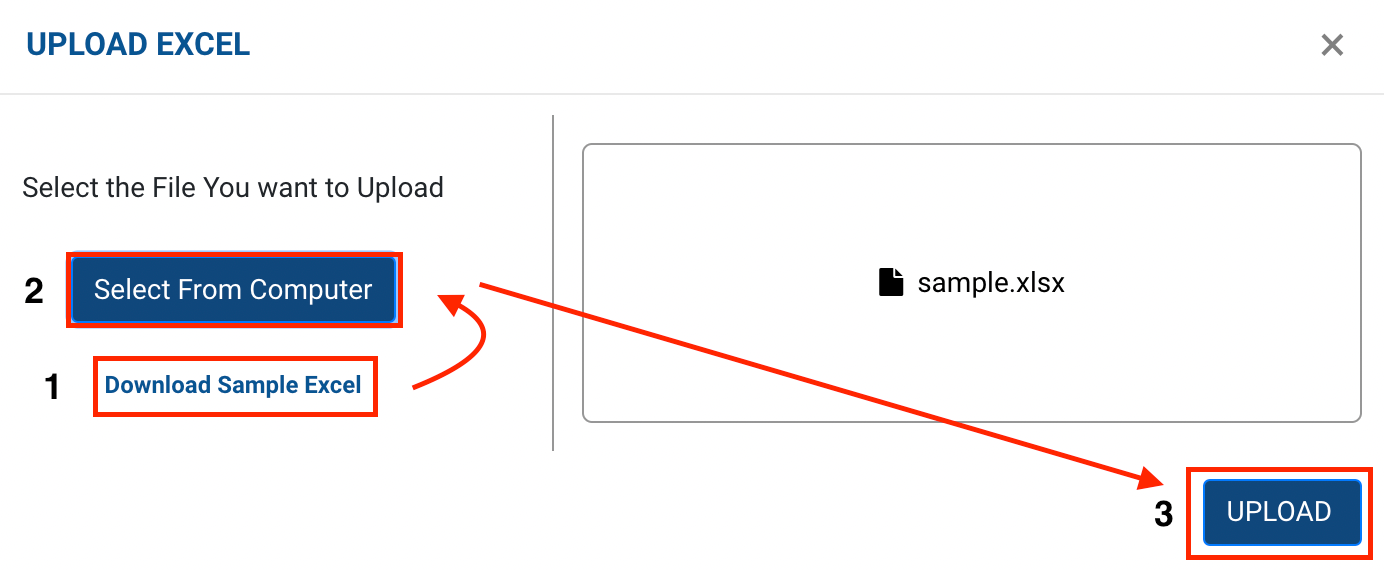
option → A form appears with the required fields to be filled.

-
Click on
Select from Computer
to upload the Excel sheet.
-
One can also drag and drop the file into the space provided in the window.
-
You can download a sample Excel file to understand what data has to be entered by clicking on the
Download Sample Excel
option from the window.
-
Click on the
Upload
and
Delete
button, you’ve successfully deleted the employees in the excel sheet from the particular Employee type and removed the permission given to them.