
On Demand -How to create employee type and add permissions
Article kCc2lUU5 · sourceFor every employee, there can be an Employee type and for that type there can be a different number of permissions.
In the dashboard :
-
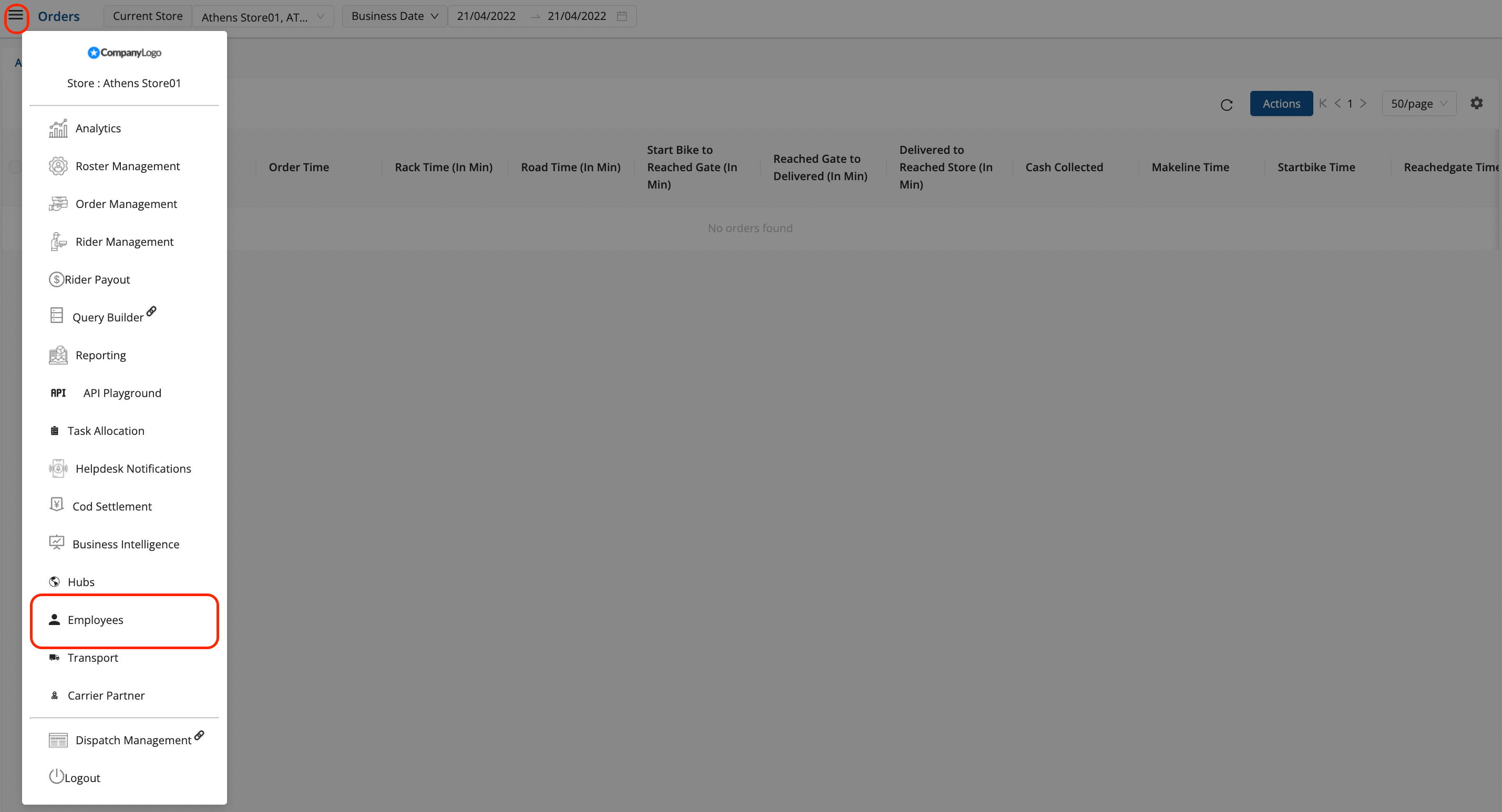
Click on the Hamburger Menu (

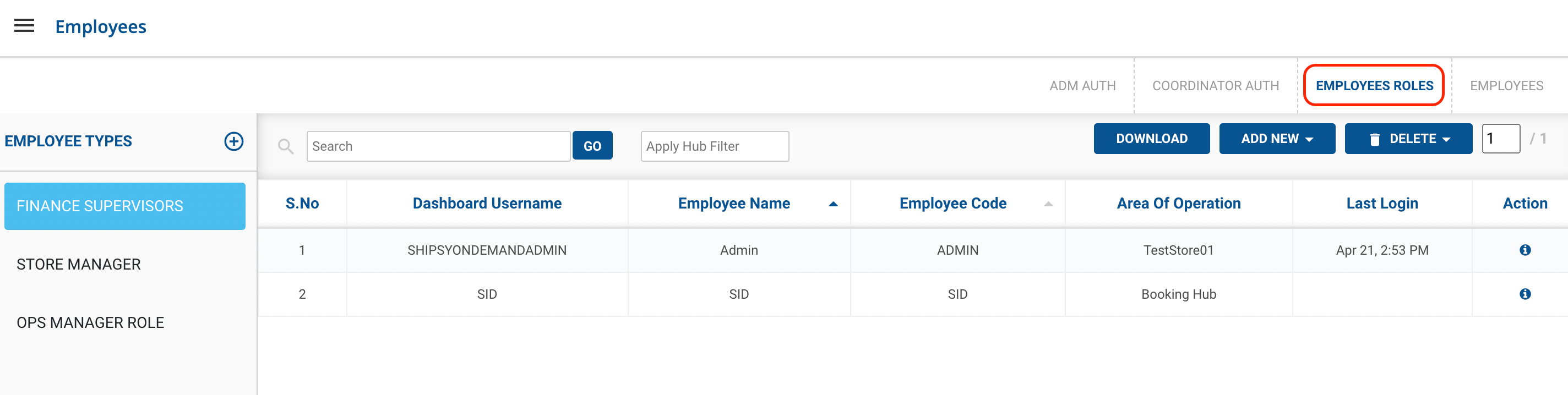
) → Employees → Employees Roles
-
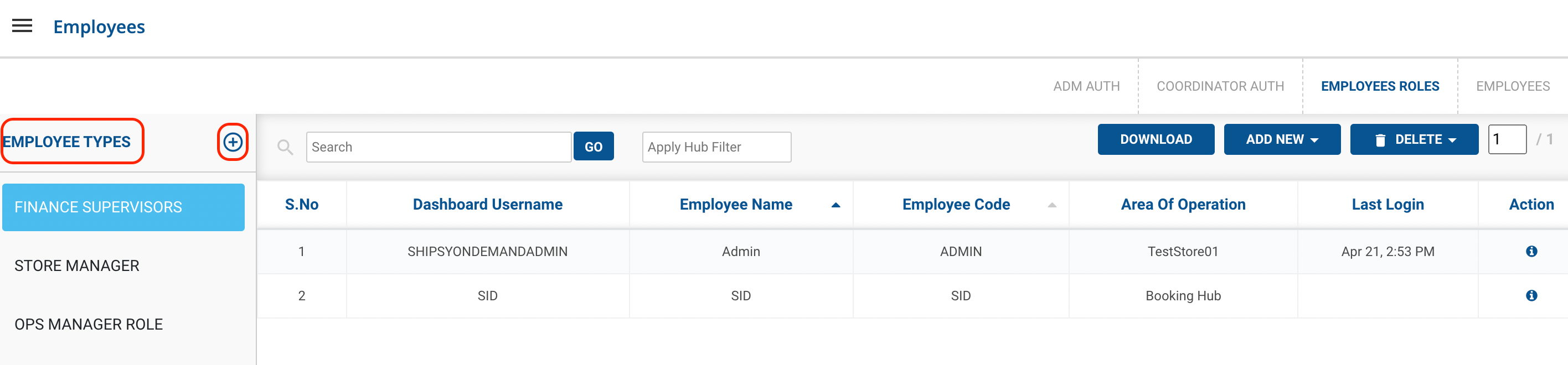
Now after going on the Employee Roles in the left hand side we can see Employee Types → And a
plus
icon
-
After clicking on the plus button
-
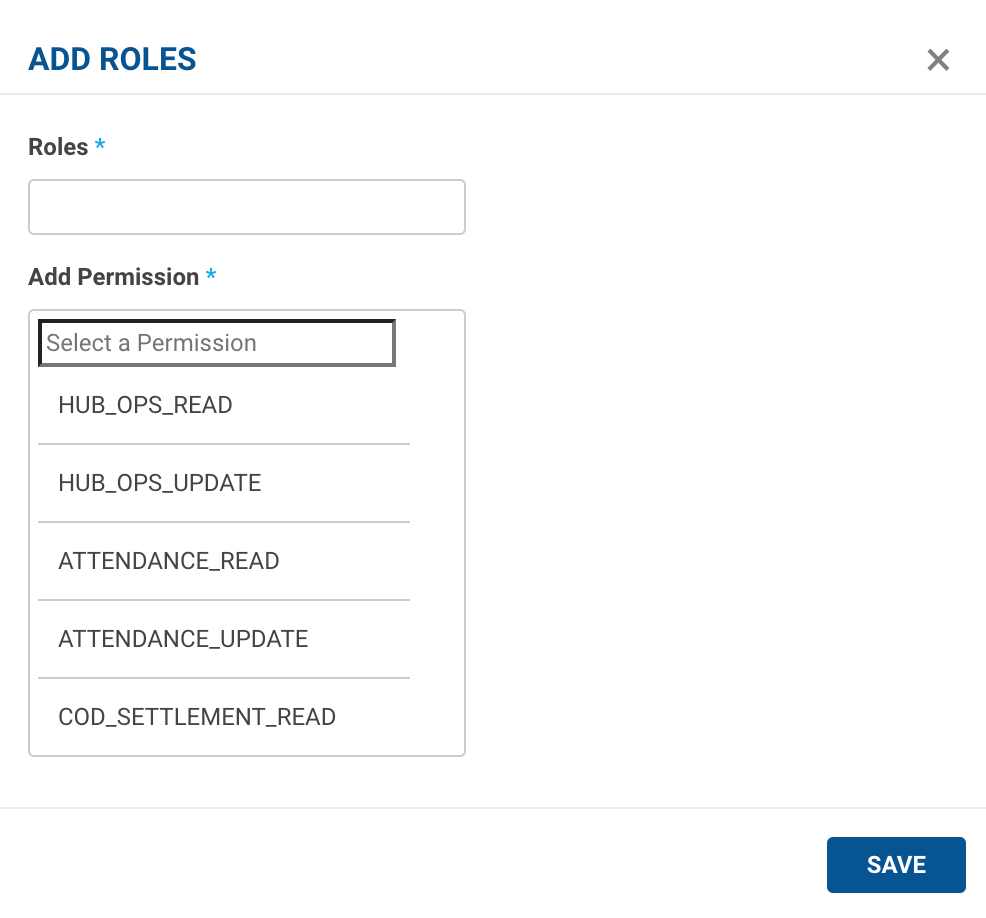
You can fill the Employee Roles
-
You can select a number of permissions, associated with that role.
-
Multiple Number of Permissions Can be Selected At Once.
-
-
Click on
Save Button
, After filling the details.
You’ve successfully created at Employee Role.
Was this article helpful?