
How to edit employee permissions
Article howinbLs · sourceIn the dashboard :
-
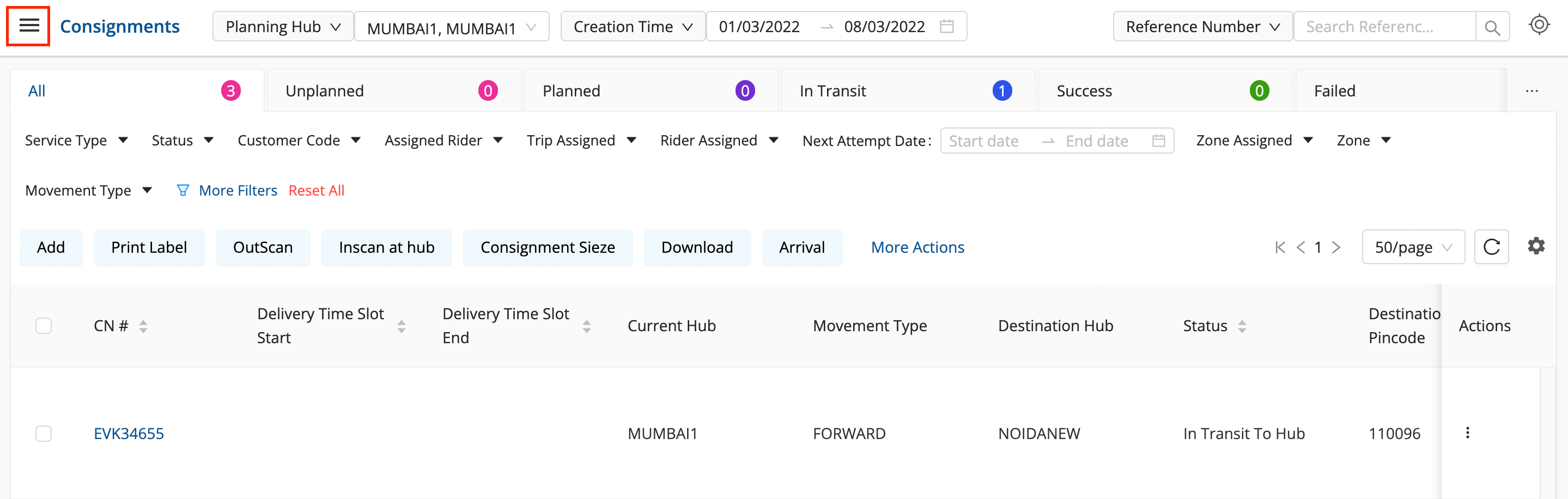
Click on the Hamburger Menu (

) → Setup → Users → Employees → Employees Roles
-
Now after going on the Employee Roles in the left hand side we can see all the Employee Types
- → Go to **Edit Option(Pen)**of particular Employee Type
-
A Box will appear with all the permissions that are already given to the particular role.
- You can delete the permission(s) by clicking on 'X'next to the specific permission(s) appearing in the list of existing permission(s) on the right**.**
- You can add new permission(s) to that role by choosing specific permission(s) from the options present in the drop down under ‘Add Permission’.
-
Click on Save after Adding or Deleting Permissions.
You’ve successfully edited an Employee Permission.
Note- Role Name Cannot be changed.
Was this article helpful?