
How to assign employee type/ role to an employee
Article Ql4dW0v3 · sourceFor every employee, the employee roles assigned to them can be assigned or deleted.
In the dashboard :
-
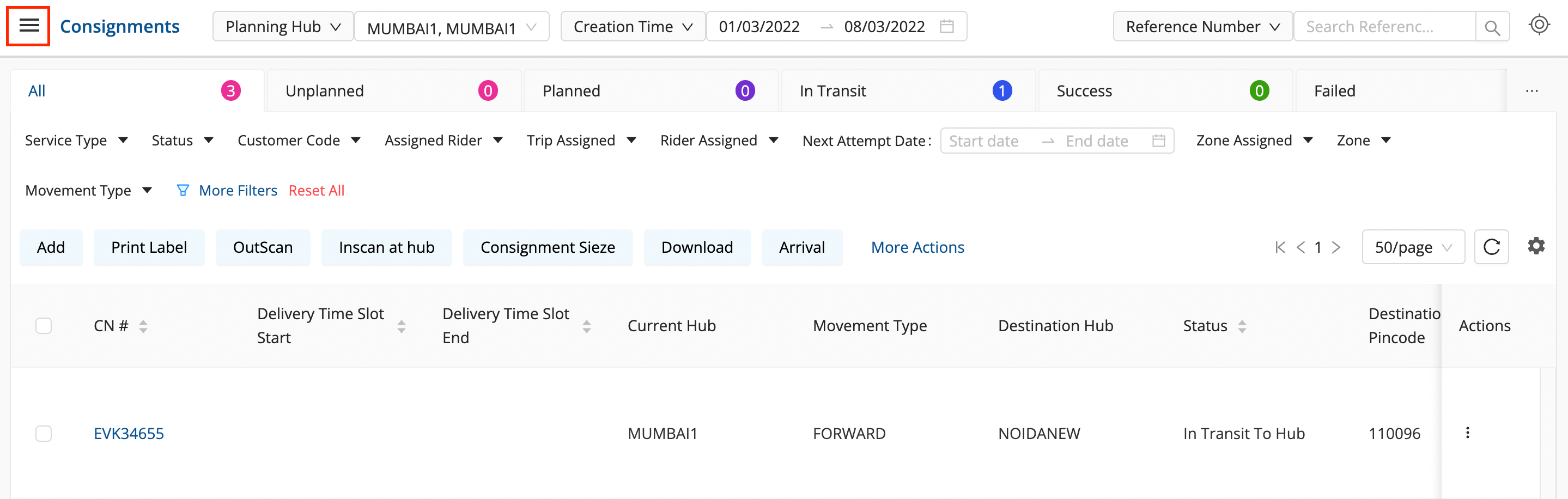
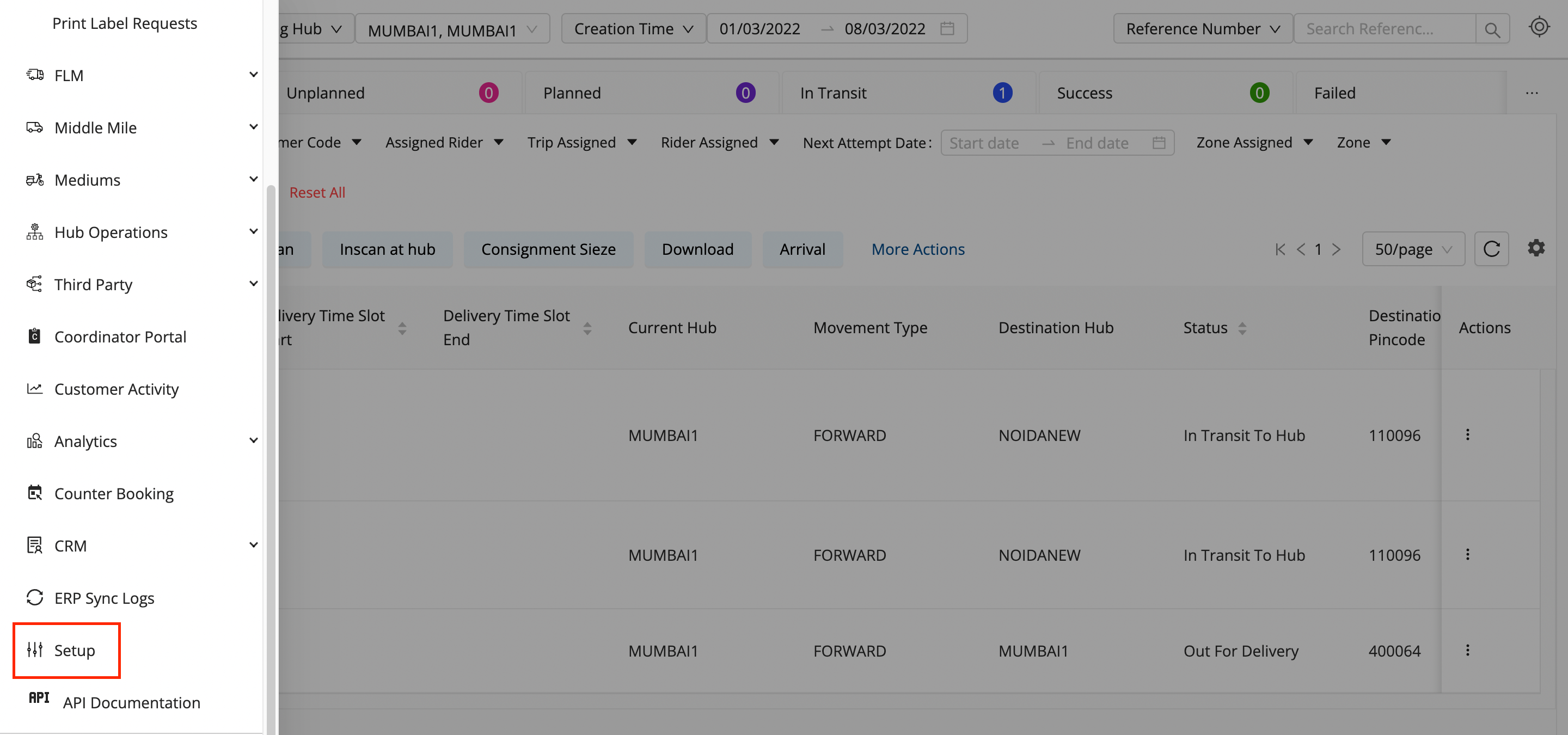
Click on the Hamburger Menu (

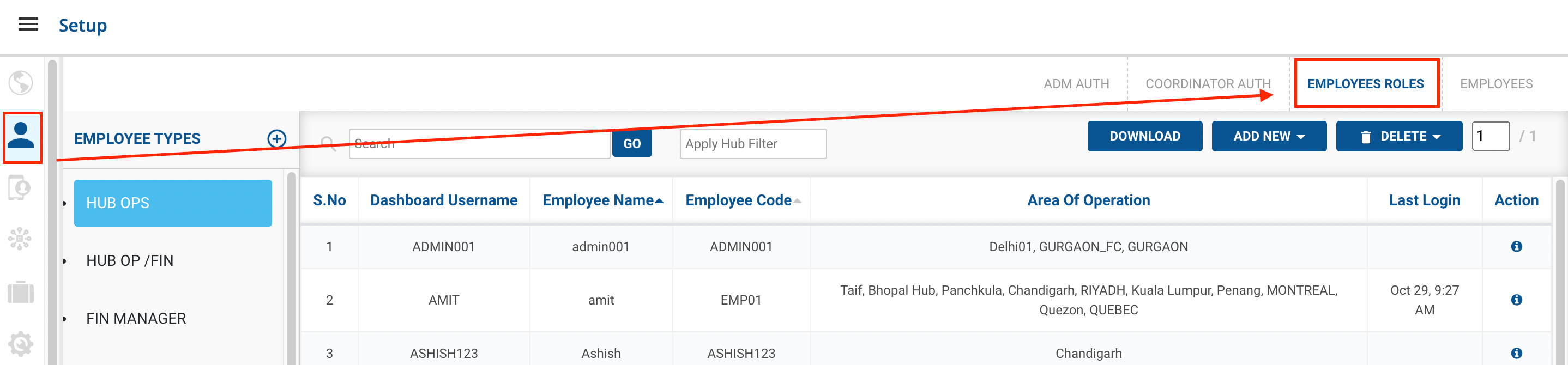
) → Setup → Employees → Employees Roles
-
Select the Employee Type where the employee has been given permission.

-
Click on the ADD NEW button.
-
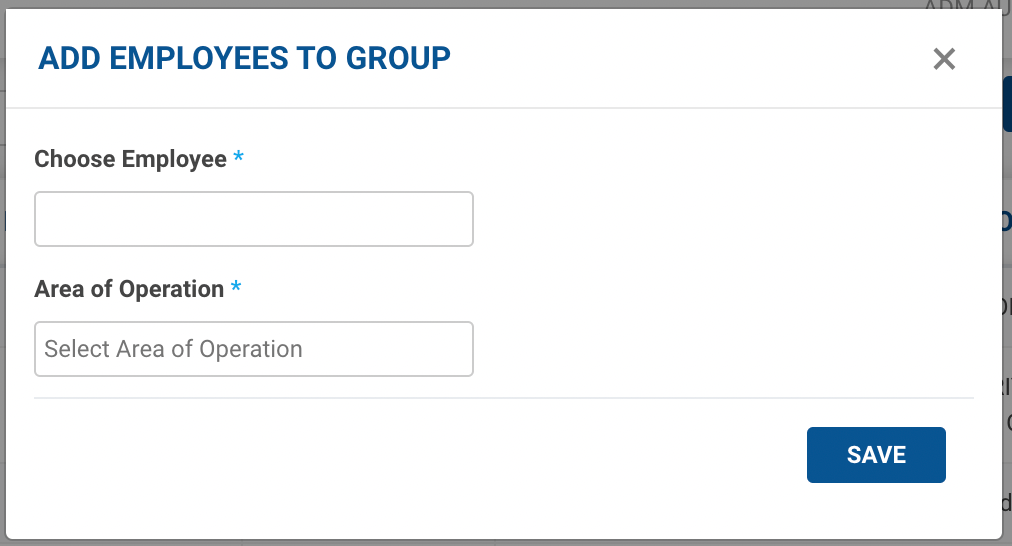
Method 1 - New {Employee Type} option → A form appears with the required fields to be filled.

-
Fill up the form with the Employee Code/ Name along with the Area of Operation(Hub) and click on the Save button.
-
You’ve successfully assigned the employee to a particular Employee type and hence, given those sets of permissions to that employee.
-
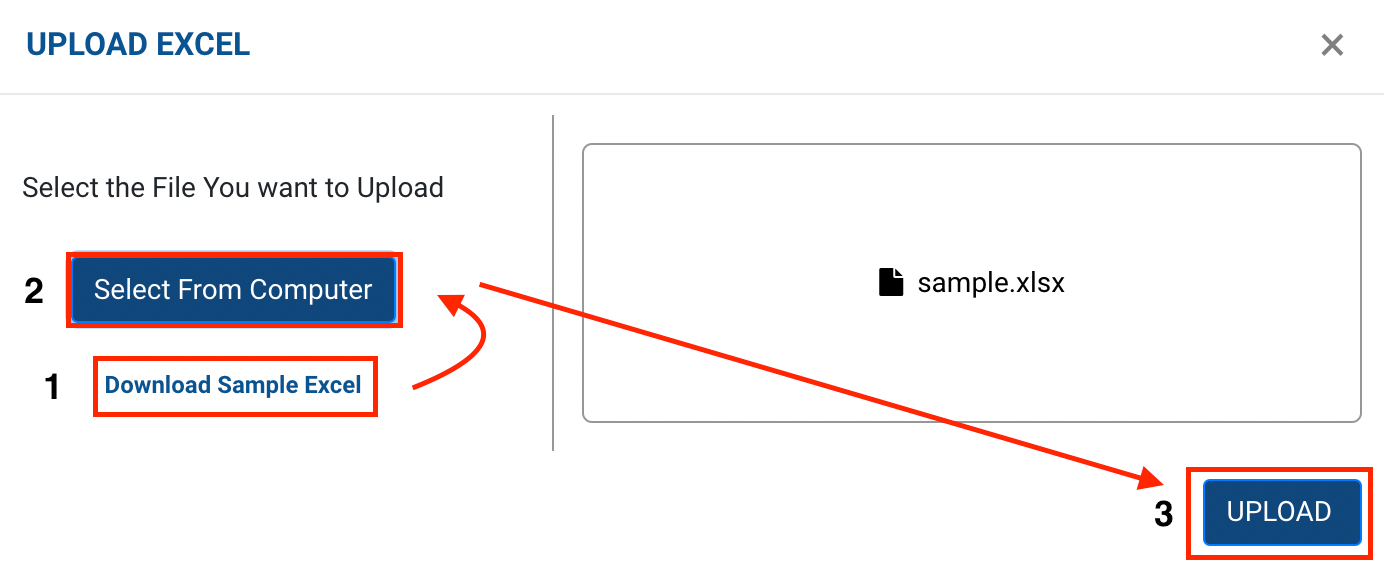
Method 2 - Upload Excel option → A form appears with the required fields to be filled.

-
Click on Select from Computer to upload the Excel sheet.
-
One can also drag and drop the file into the space provided in the window.
-
You can download a sample Excel file to understand what data has to be entered by clicking on the Download Sample Exceloption from the window.
-
Click on the UploadandAdd button, you’ve successfully added the employees to the particular Employee type and given the set of permissions to them.