
How to edit undelivered reasons
Article r9wnuo3T · sourceFor any unsuccessful consignment delivery, the system requires a set of undelivered reasons for future actions regarding that particular consignment.
In the dashboard :
-
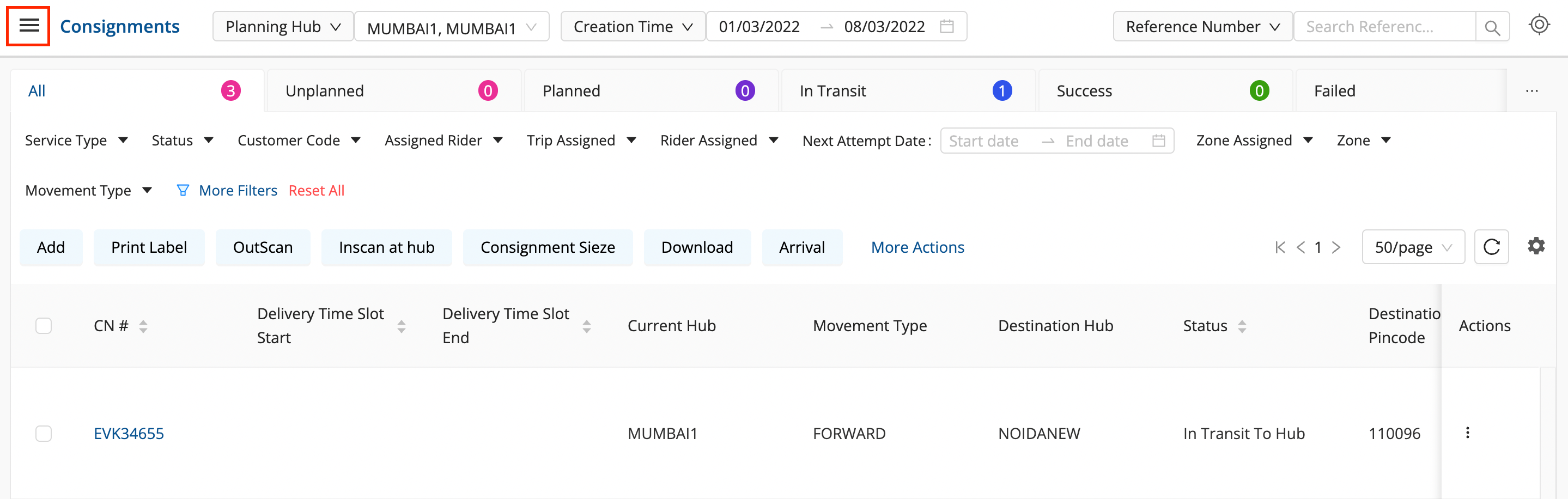
Click on the hamburger menu (

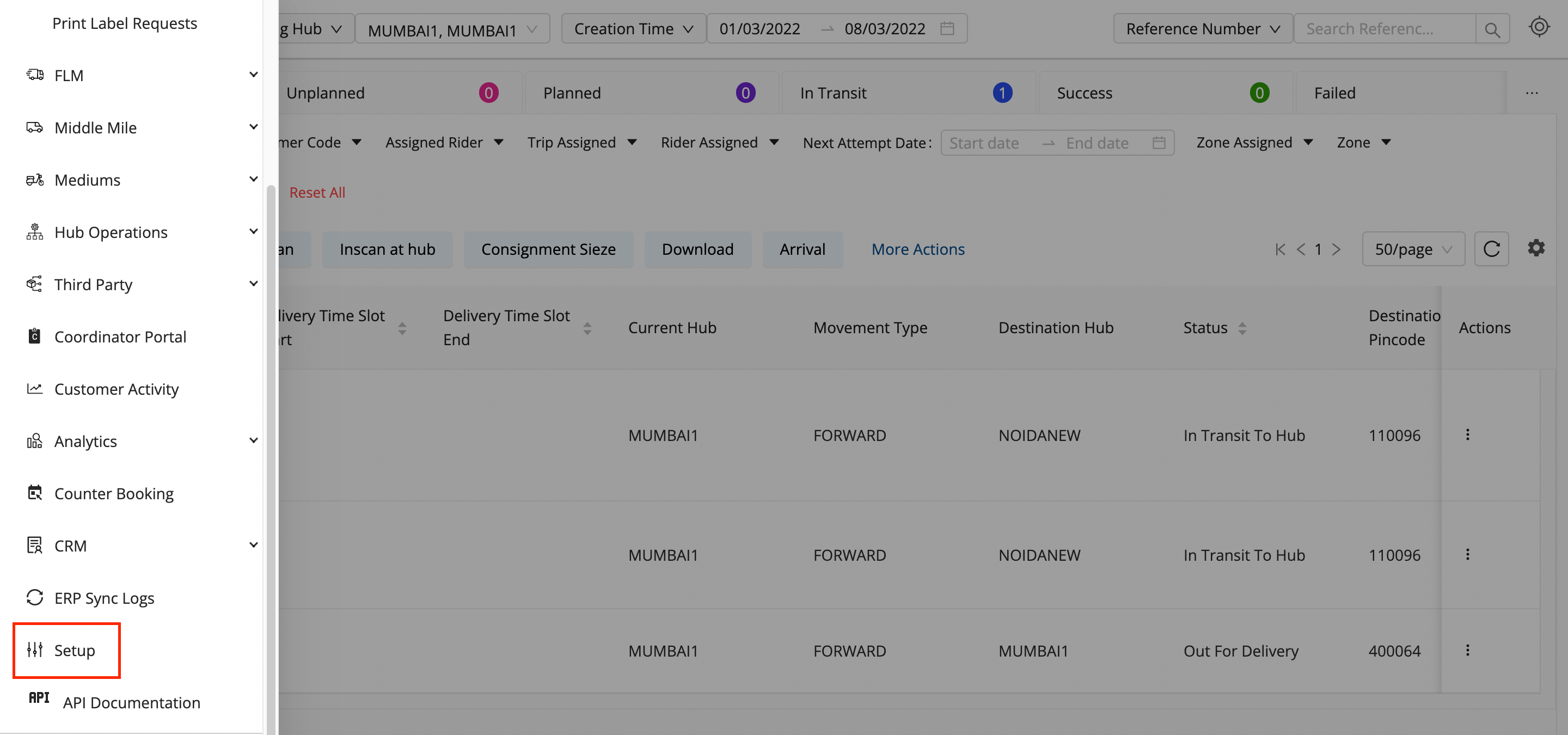
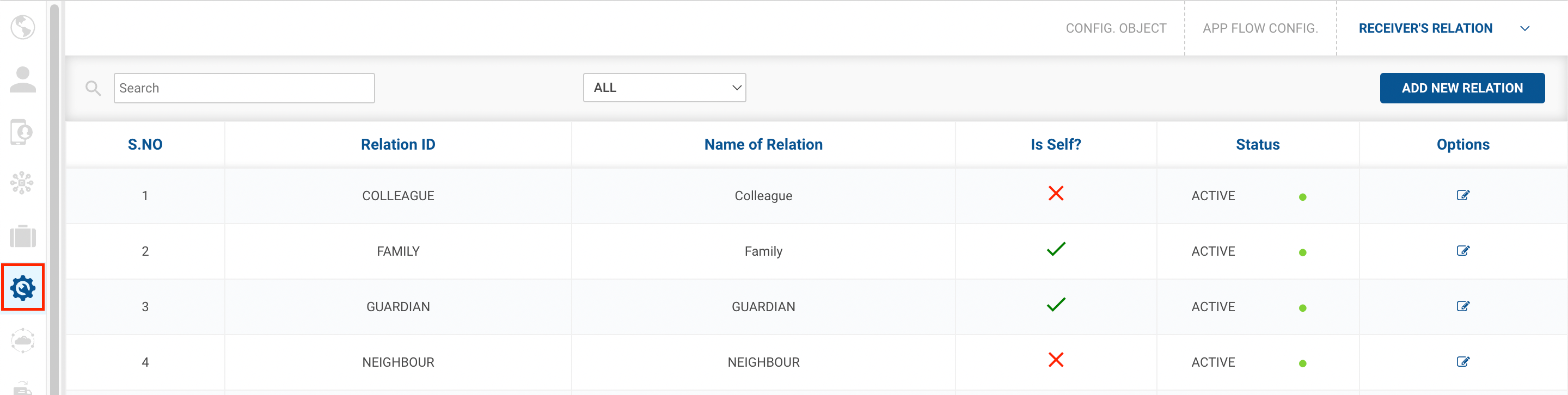
) → Setup → App Flow Config (

)
-
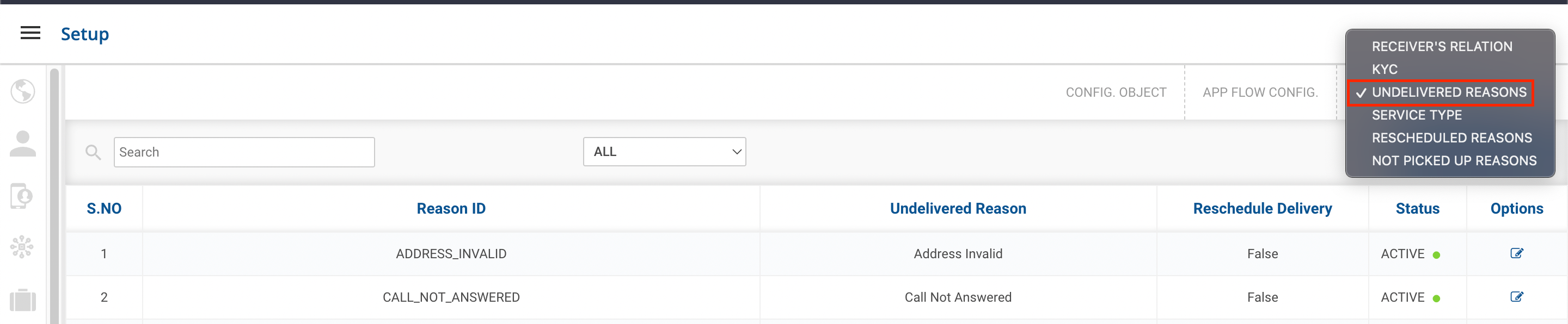
Click on the dropdown menu at the top right and select the Undelivered Reasons option.
-
Click on the Edit Undelivered Reason(

) icon on the right side of the table under the options column.

-
Edit Undelivered Reasonoption → A form shall appear with required fields to be edited.
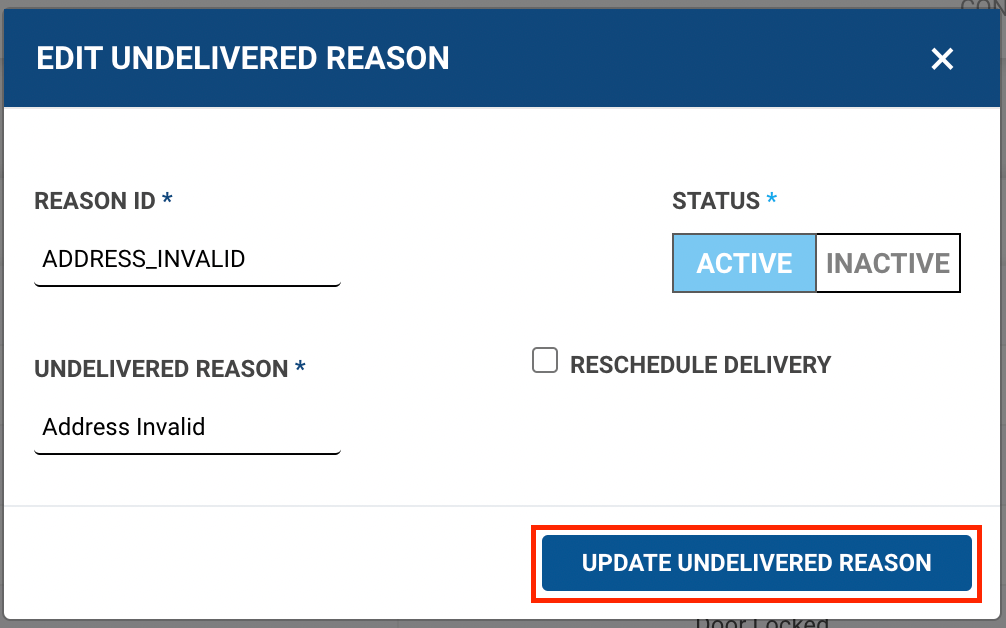
- Edit the form with the required changes and click on the Update Undelivered Reasonbutton.
- You’ve successfully edited an Undelivered Reason.
Was this article helpful?