
How to delete Shelf
Article P1nmwbkZ · sourceFor any consignment which cannot be delivered/picked up the first time or has been delayed due to some particular reason, and delivery or a pickup has been scheduled soon, those particular consignments are kept on the Shelves in the hub.
In the dashboard :
-
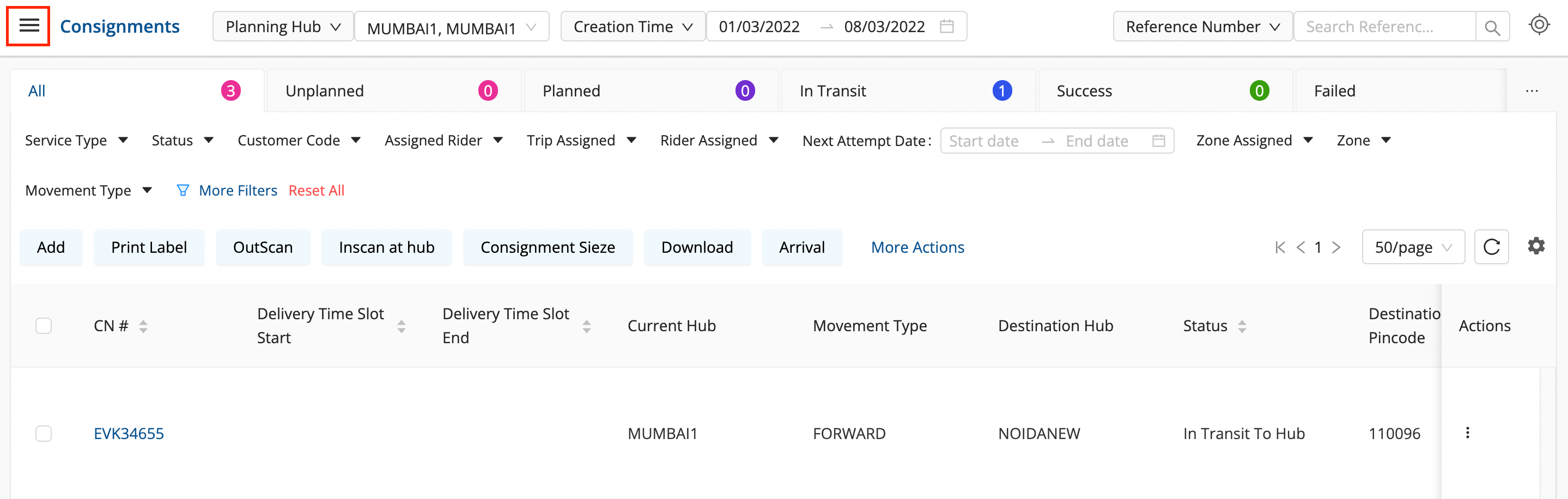
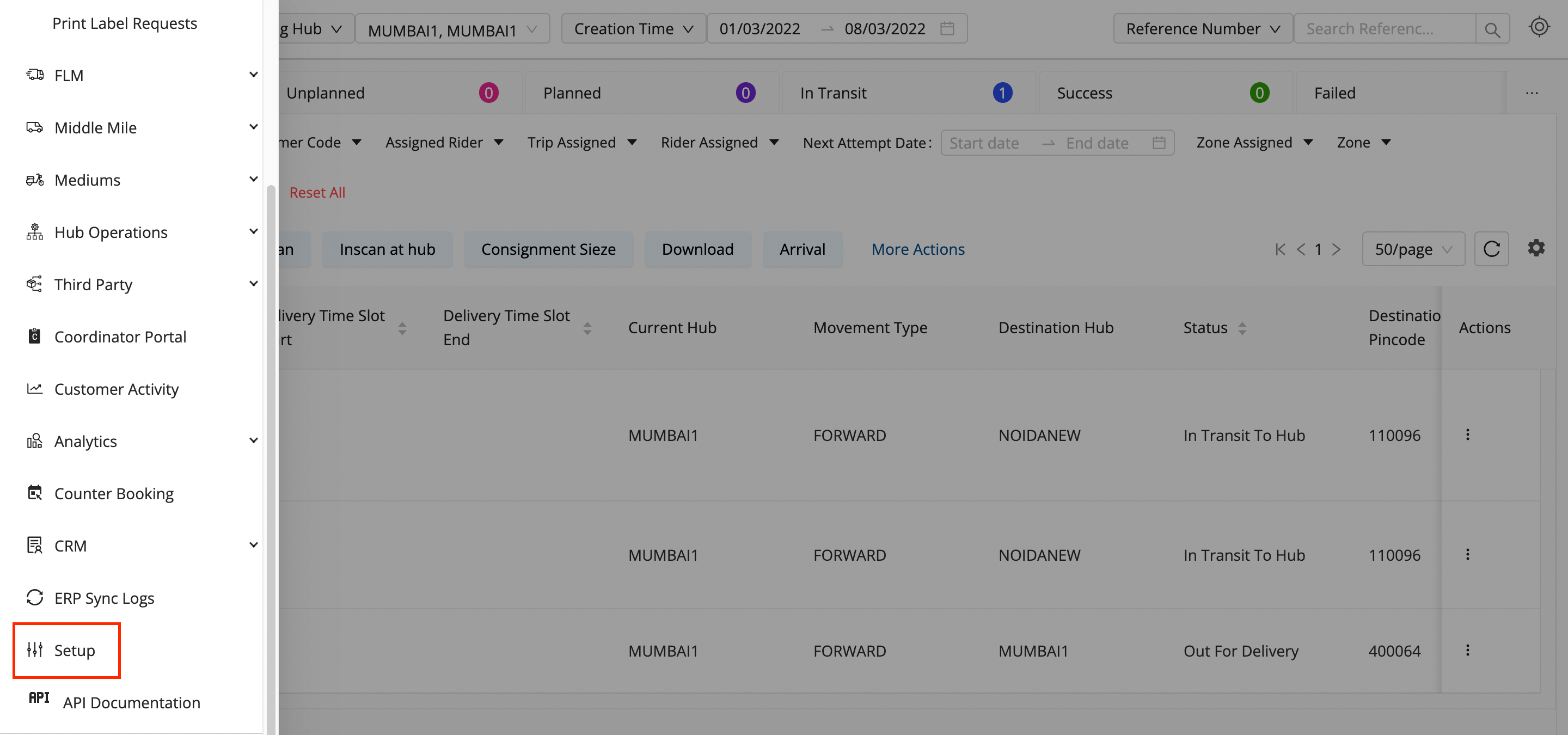
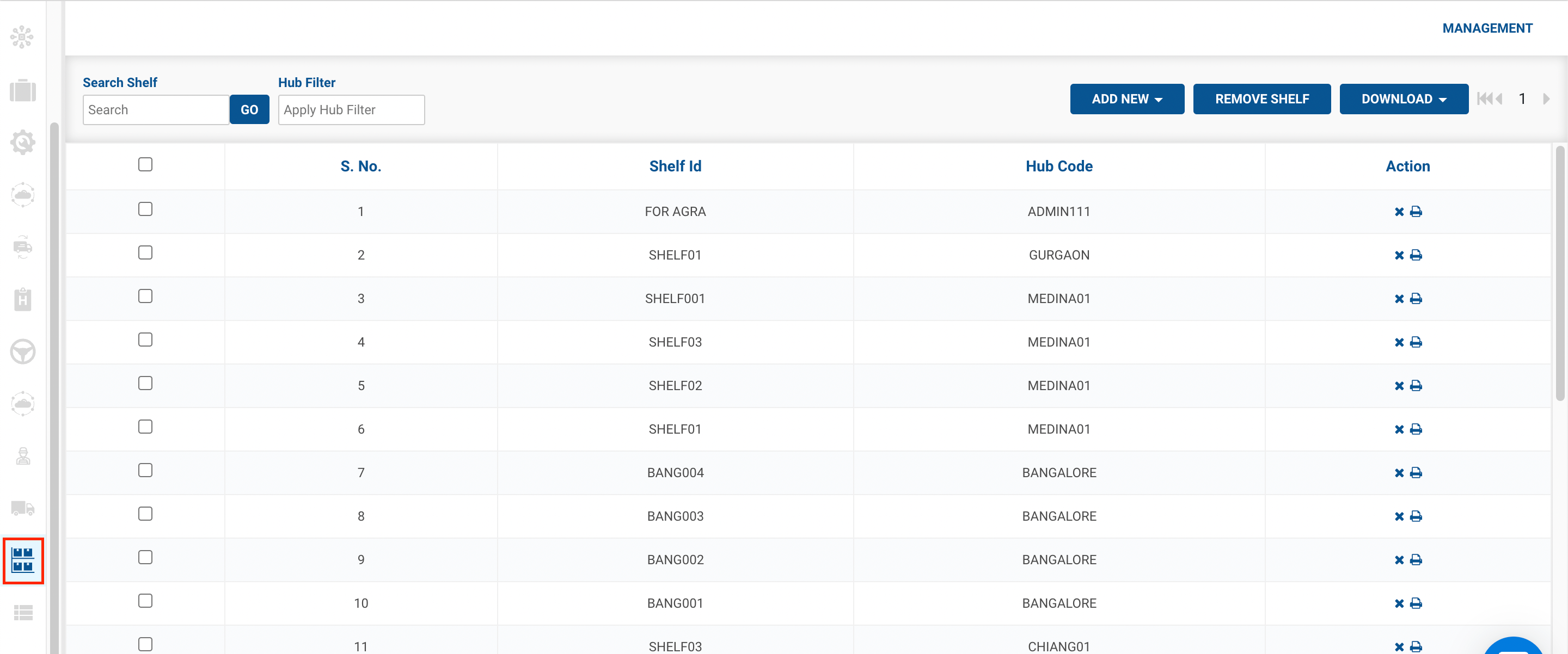
Click on the hamburger menu () → Setup → Shelf Management ()
-
Method 1- option → A form shall appear for confirming deleting the particular shelf. This method is used to delete a Single Shelf.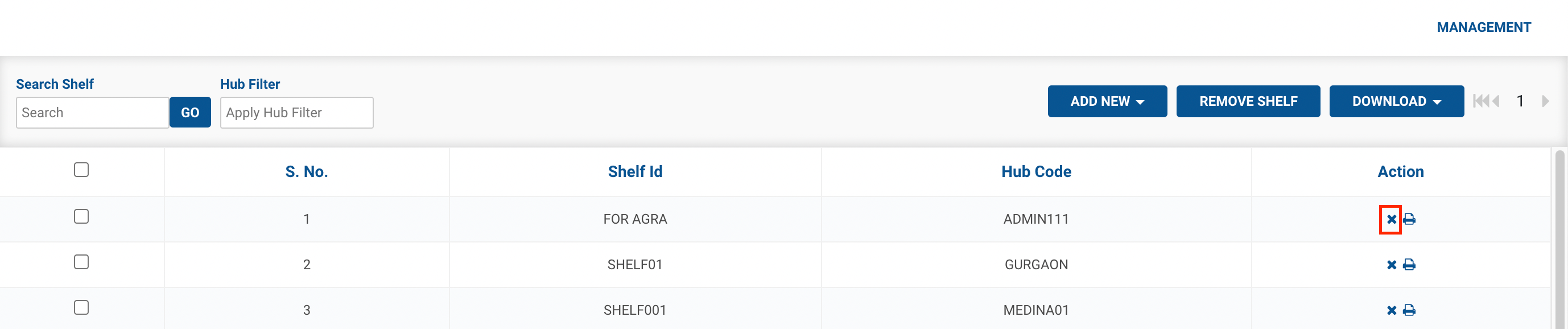
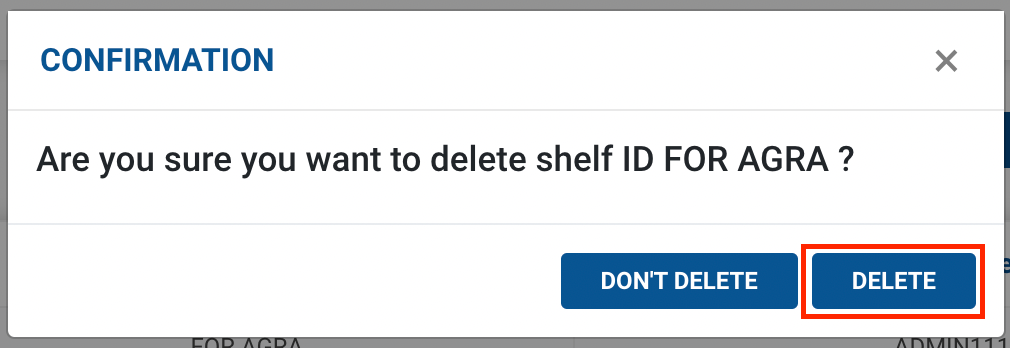
-
You’ve successfully deleted a Shelf.
-
Method 2- Remove Shelf option → A file upload window appears. This method is used to delete multiple Shelves.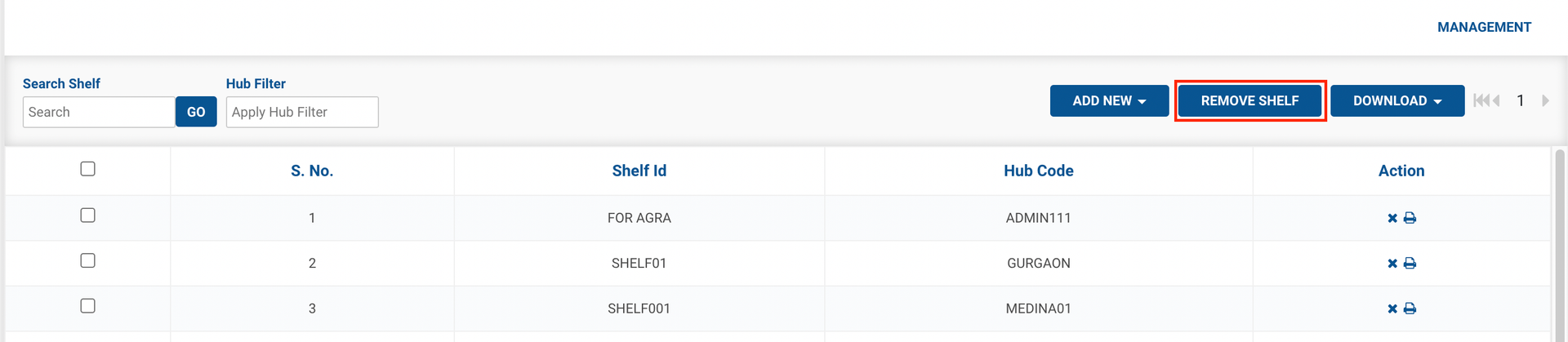
-
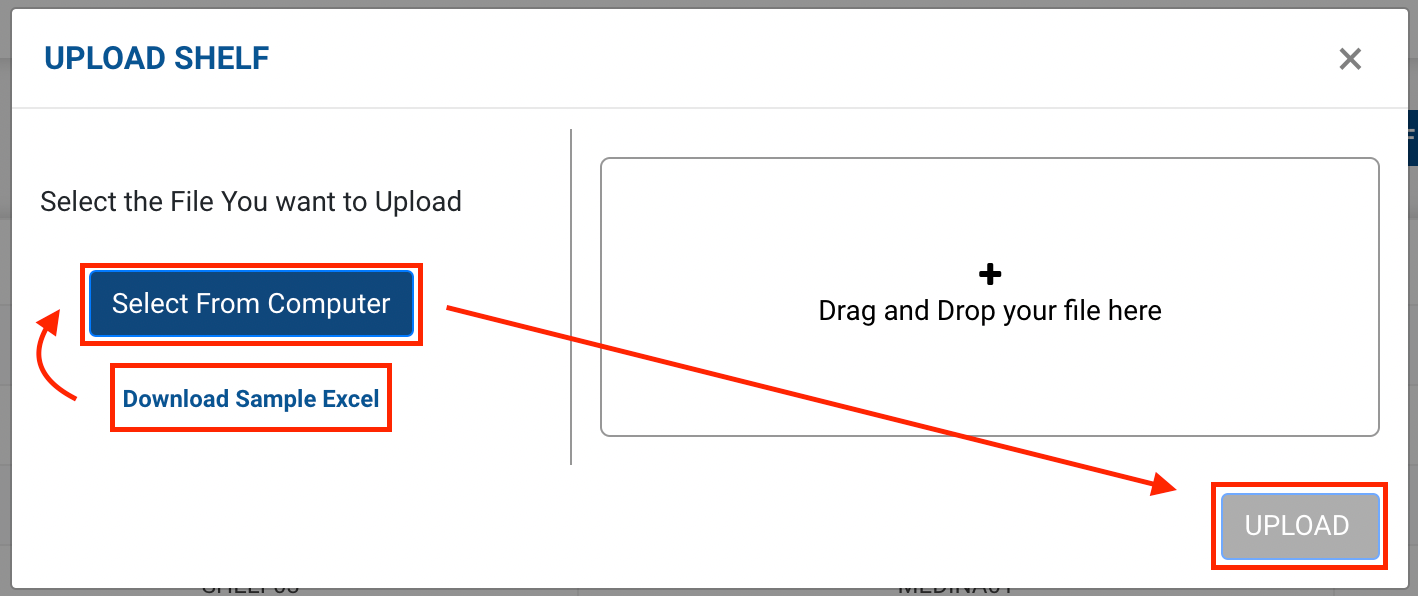
Click on the Select From Computer button to upload your Excel sheet.
-
One can also drag and drop your file into the space provided in the window.
-
You can download a sample Excel file to understand what data has to be entered by clicking on the Download Sample Excel option from the window.
-
You’ve successfully deleted the set of selected Shelves.