
How to delete allocation rule
Article 4_Rrpma1 · sourceIn the dashboard :
-
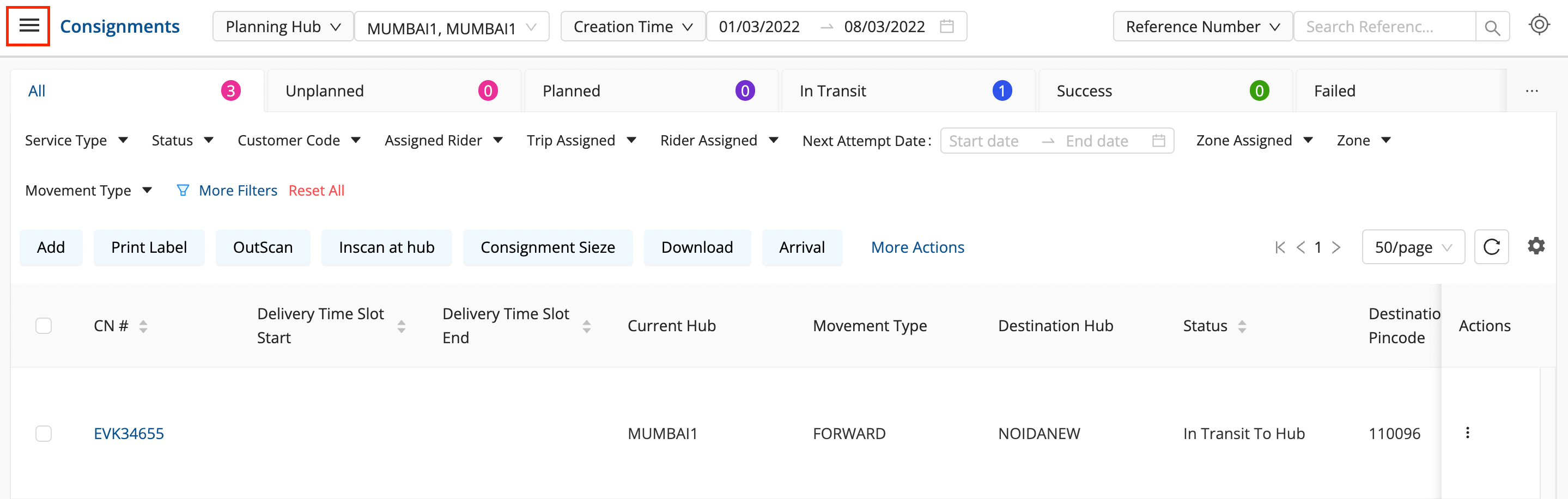
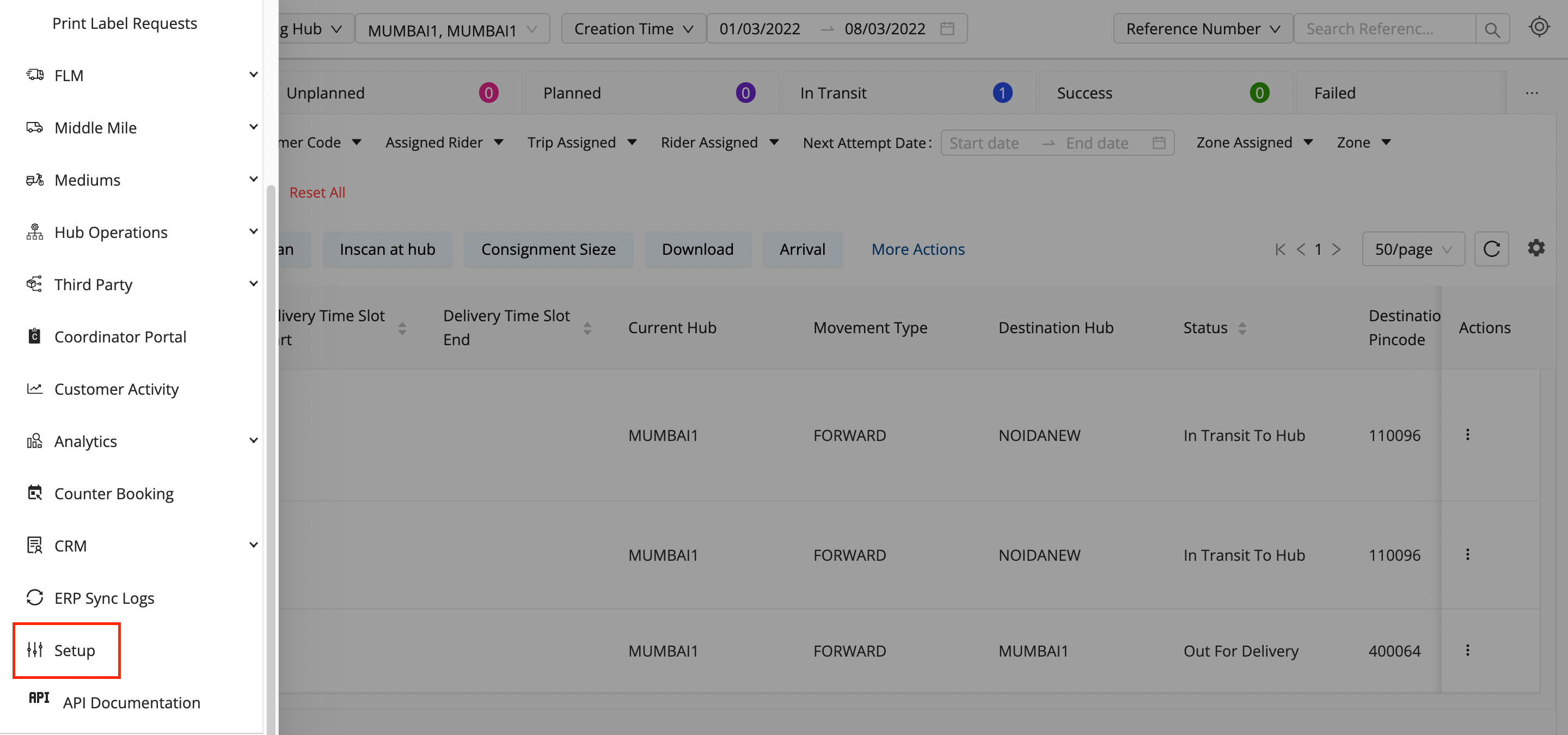
Click on the Hamburger Menu (

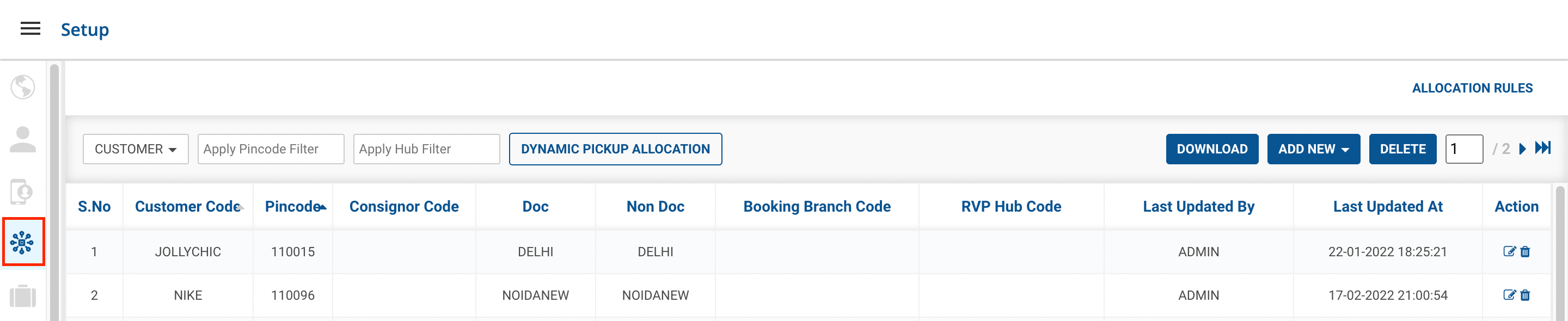
) → Setup → Customer Allocation Rules (

)
-
Method 1 - Delete (

) Button →

-
To delete an allocation rule, click on the Delete (
) Button icon on the right side of the table.

-
Then confirm deleting the rule by clicking on the Deletebutton and the Don’t Delete button if you don’t want to delete the Allocation Rule.
-
If you pressed the Deletebutton, you’ve successfully deleted the Allocation rule.
-
-
Method 2 - Delete Button → A form appears with the required fields to be filled.

- Select the Action Status (Delete by Customer/ Delete by Pincode/ Delete by Customer-Pincode Combination) using which Bulk Delete Action will occur.
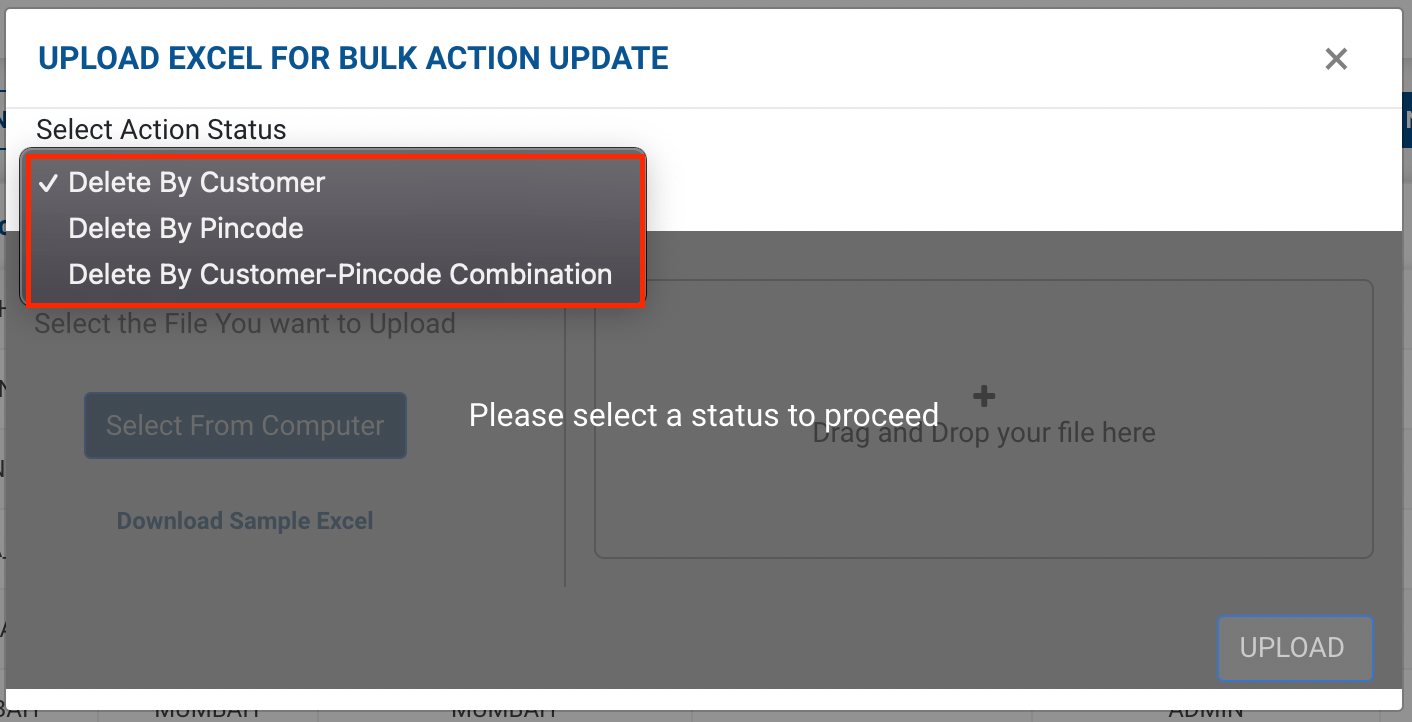
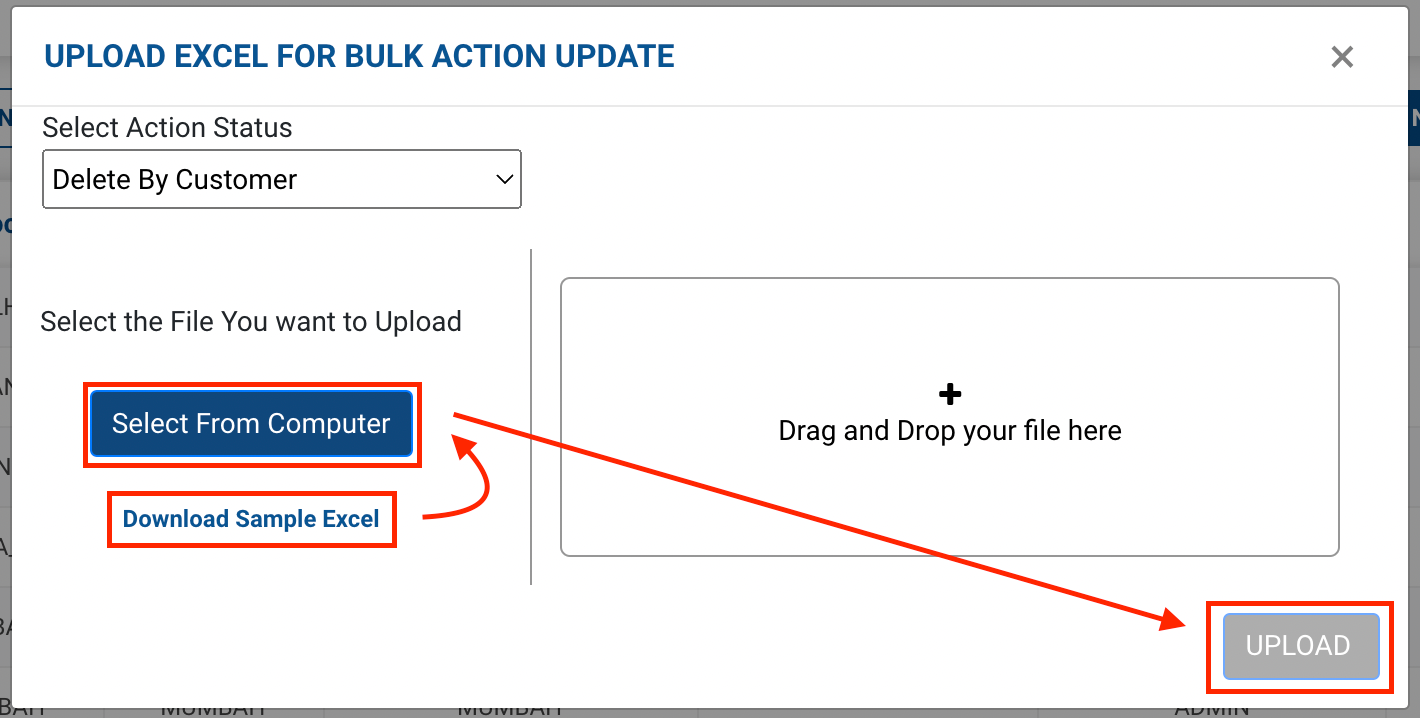
- You can download a sample Excel file to understand what data has to be entered by clicking on the Download Sample Exceloption from the window of the selected Action Status.
- Click on Select from Computer to upload the filled Excel sheet.
- One can also drag and drop the file into the space provided in the window.
- Click on the Upload button.
- If after uploading, you press the Deletebutton, you’ve successfully deleted the Customer Allocation rules present in the excel sheet.
- Select the Action Status (Delete by Customer/ Delete by Pincode/ Delete by Customer-Pincode Combination) using which Bulk Delete Action will occur.
Was this article helpful?