
How to download Shelf details
Article DqYxb6lY · sourceFor any consignment which cannot be delivered/picked up the first time or has been delayed due to some particular reason, and delivery or a pickup has been scheduled soon, those particular consignments are kept on the Shelves in the hub.
In the dashboard :
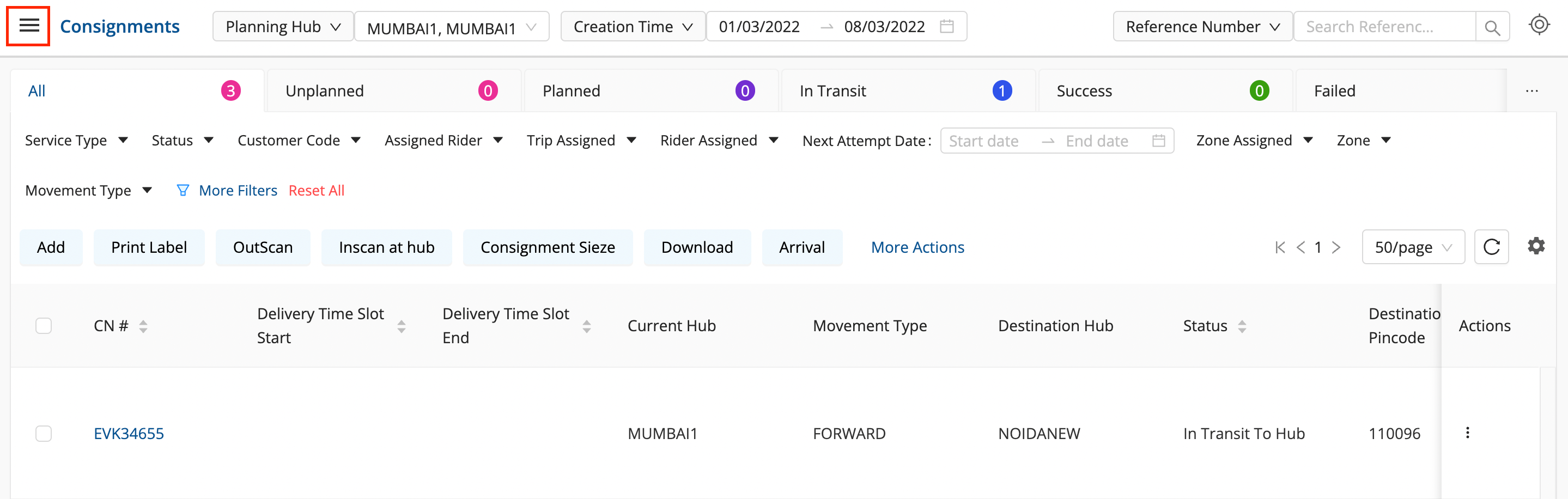
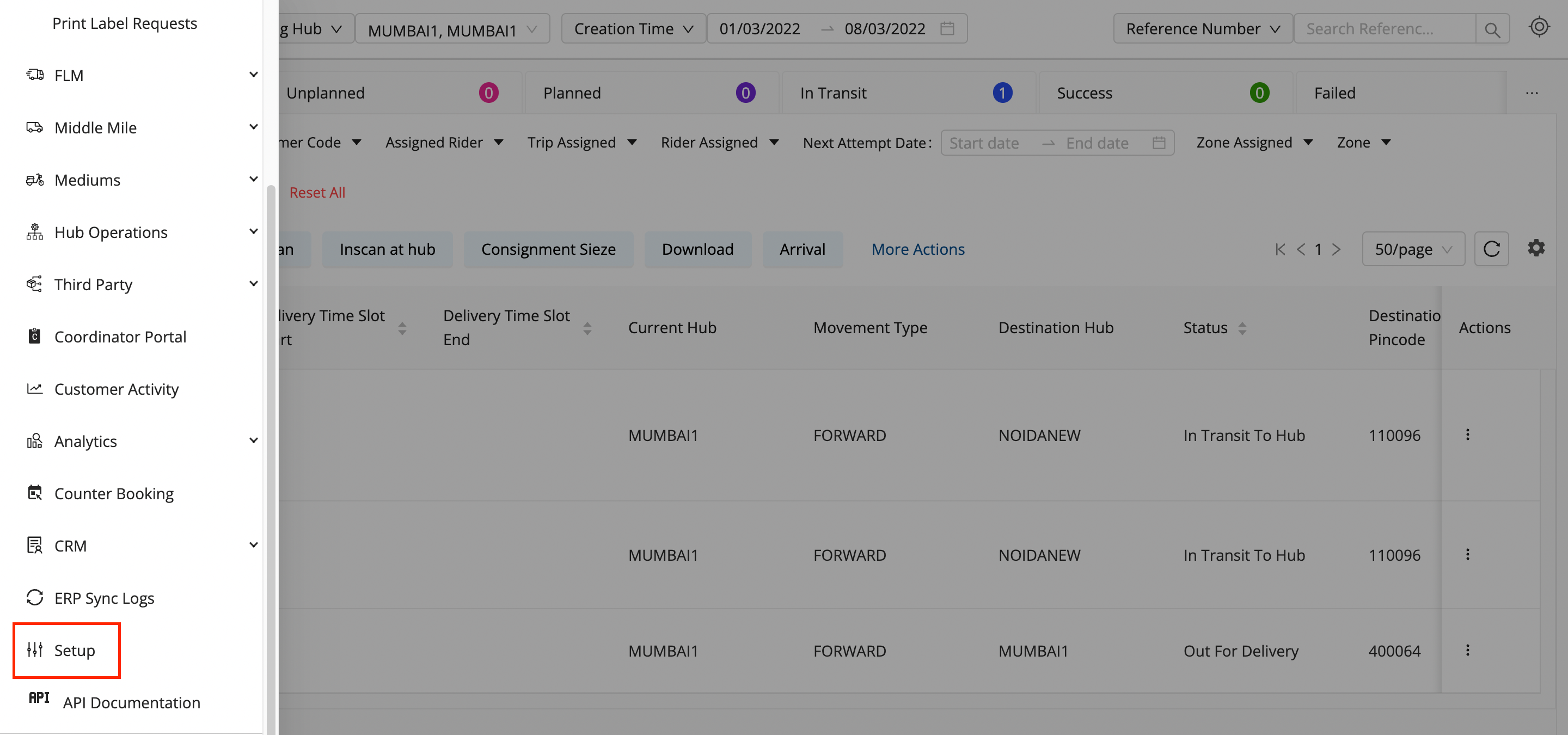
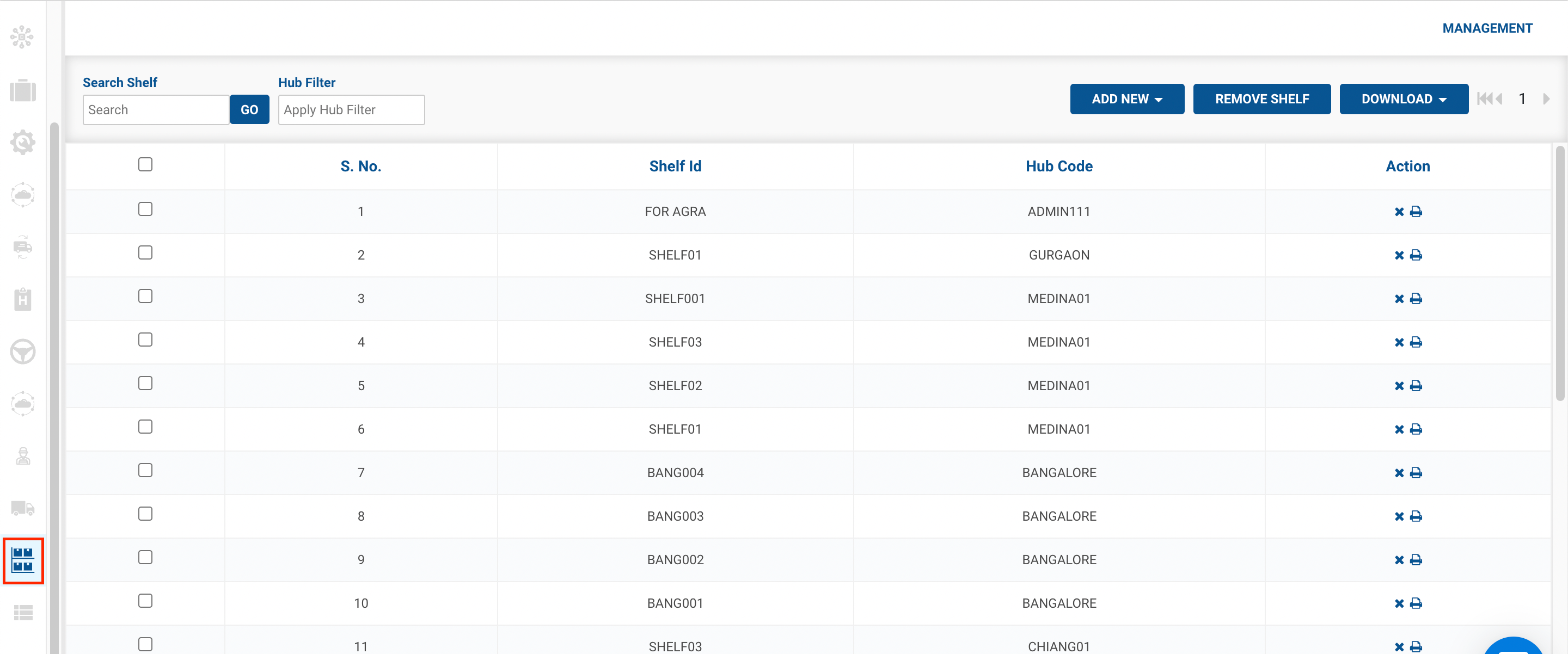
- Click on the hamburger menu () → Setup → Shelf Management ()
-
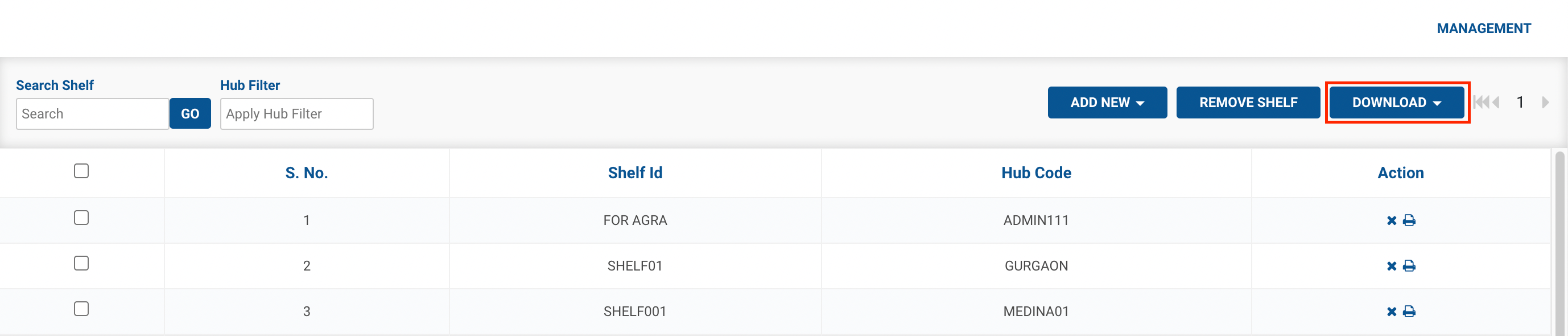
Click on the Download button.
-
Method 1- The Download Selected option → Select a set of shelves that have to be downloaded.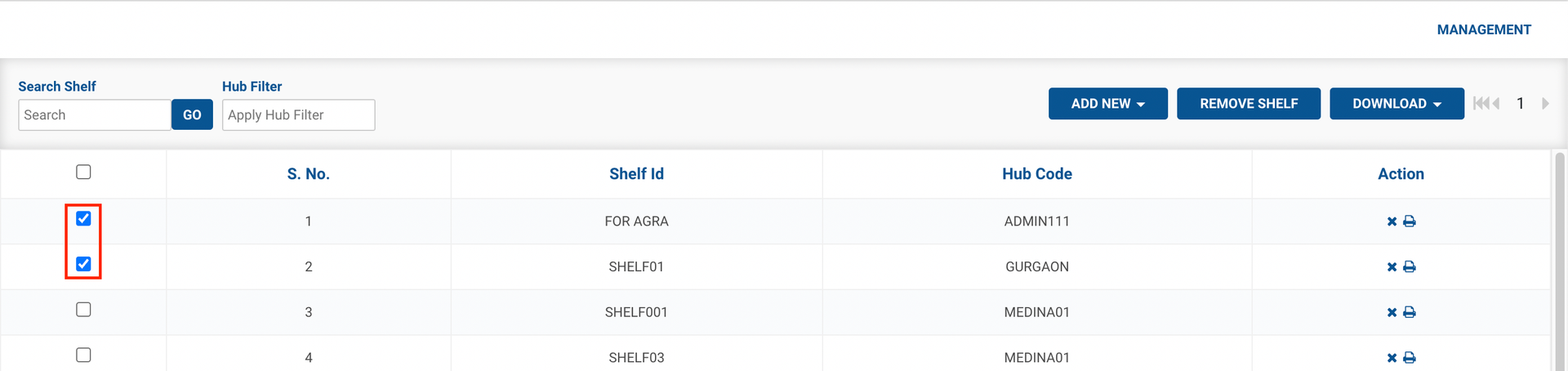
-
Click on the Download Selected option.
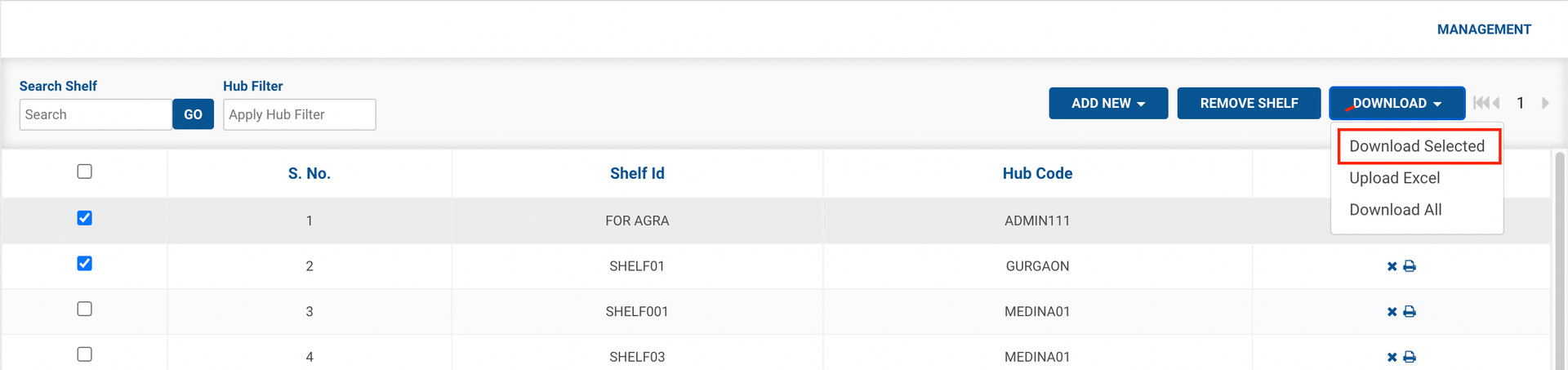
-
ou’ve successfully downloaded the details of the Selected Shelves.
-
Method 2- Download All option → This method is used to download the details of all the Shelves.
-
You’ve successfully downloaded all the Shelves.
Was this article helpful?