
Create order in demo environment through inputting order info in dispatch screen
Article rb5R9SSw · source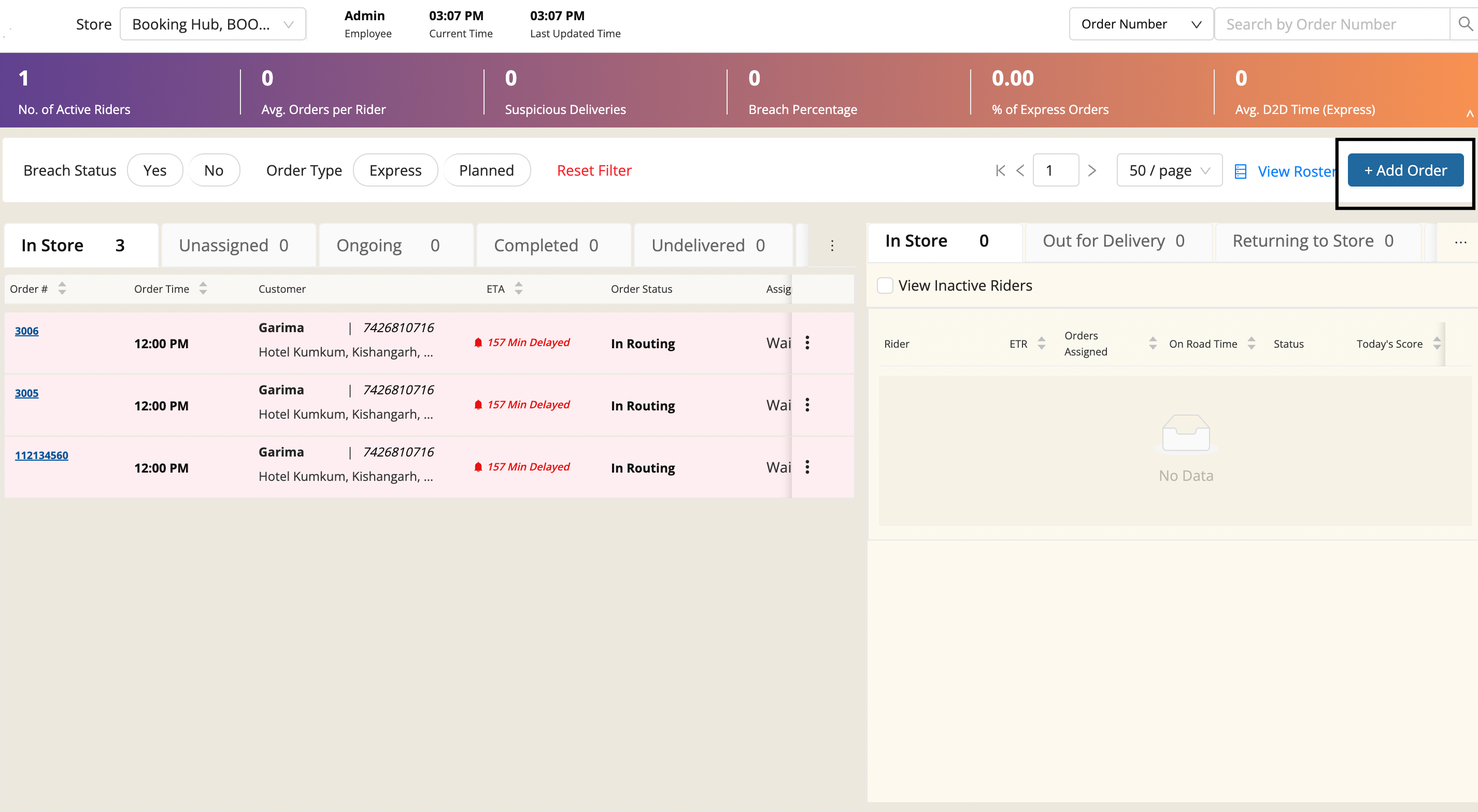
Click on top right corner (black outline) “Add Order“ all blue button.
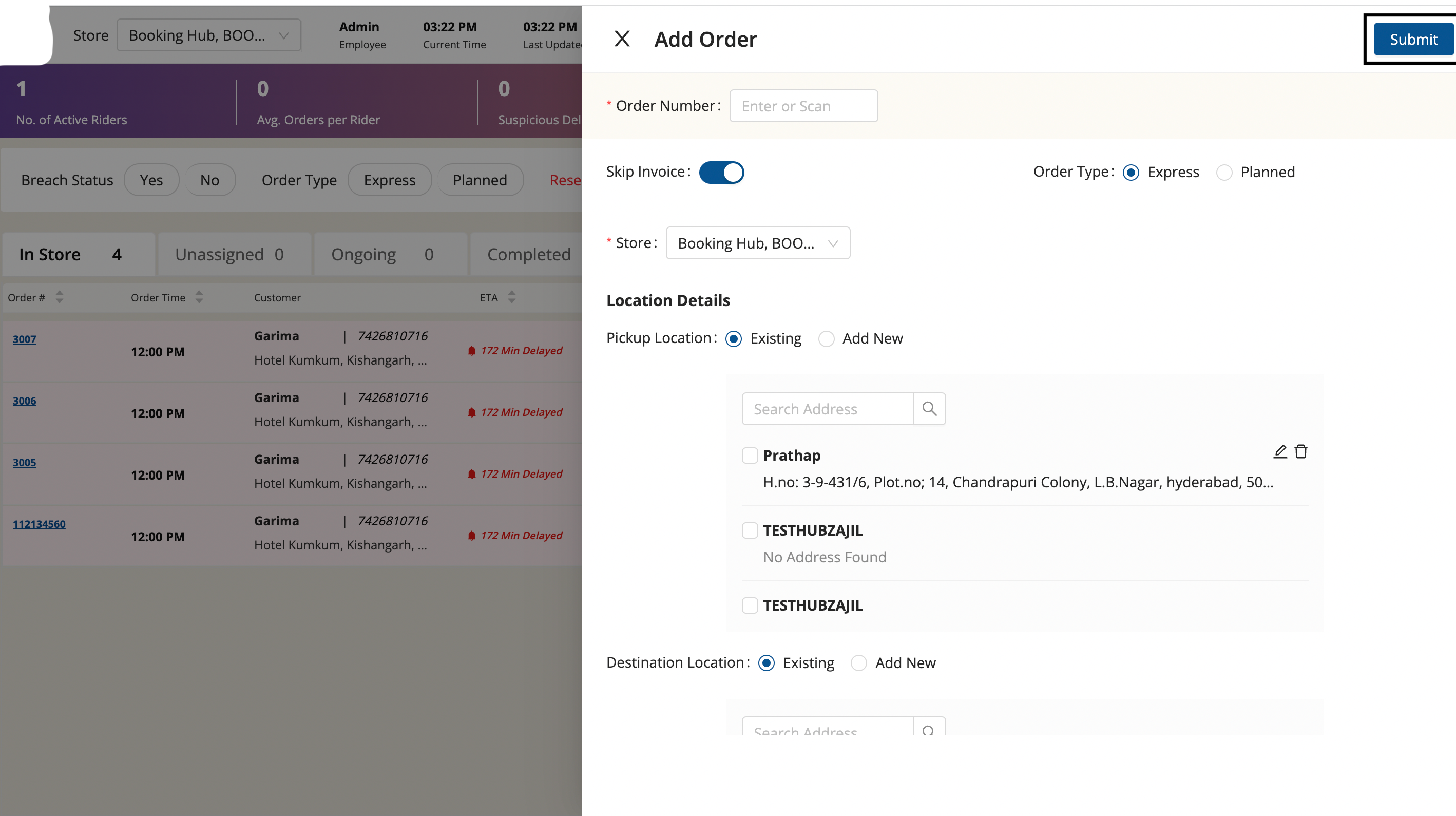
- Type down 'Order Number' → Toggle for Skip Invoice & Choose for Order type (Express or Planned) → Store has to be chosen for the hub you want the order to be ordered
- In Location Details section, one can choose from the multiple existing pickup locations or 'Add New' pickup location by choosing the 'Add New' toggle. The same goes for filling Destination Location as an input.
- In Pickup details section, fill up pickup details to be delivered piece’s Name, Quantity of the piece & MRP of the piece(Weight of the piece can be added as well).
- In Time Section: Fill up the date and slot time for the order to be delivered.
- Now click blue button “Submit“(black outline) on top right after scrolling up.
Was this article helpful?