
Method 1 → V2 Dashboard
Article r-D2zw2n · sourceDescription : This page covers the process of loading of a middle mile vehicle.
In the origin hub, once the trip is created, we have to load the consignments in a middle mile vehicle and freeze the trip. This process can be completed by the shipsy hub ops app and V2 dashboard as well.
- Method 1 → V2 Dashboard
- Method 2 → Hub Ops App
Method 1 → V2 Dashboard
After the trip creation in the dashboard, the following screen is visible.

-
Click on Start Loading.
-
Select the destination hub at the “Scanning for” field.
-
Add the required consignments/bags to the trip by clicking on the blue arrow '>' symbol.
- The blue symbol appears when the mouse pointer is brought close to that particular position.
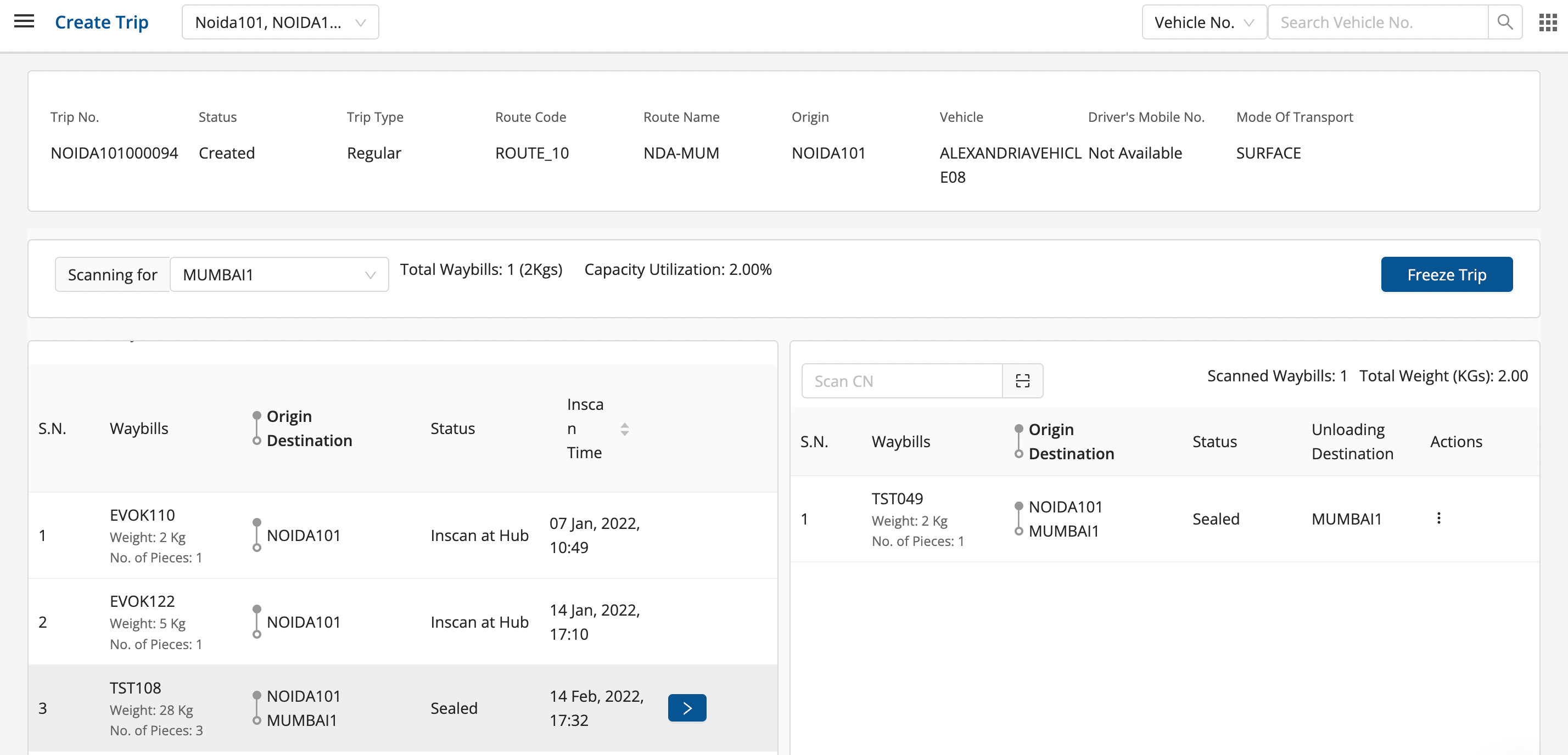
- Click on Freeze Trip to successfully freeze the trip.
- The trip will now be visible in the Outbound bucket.
Method 2 → Hub Ops App
After login into the app, change hub to the source hub in the hamburger menu.
- In the dashboard, click on Loading → Middle Mile Loading.
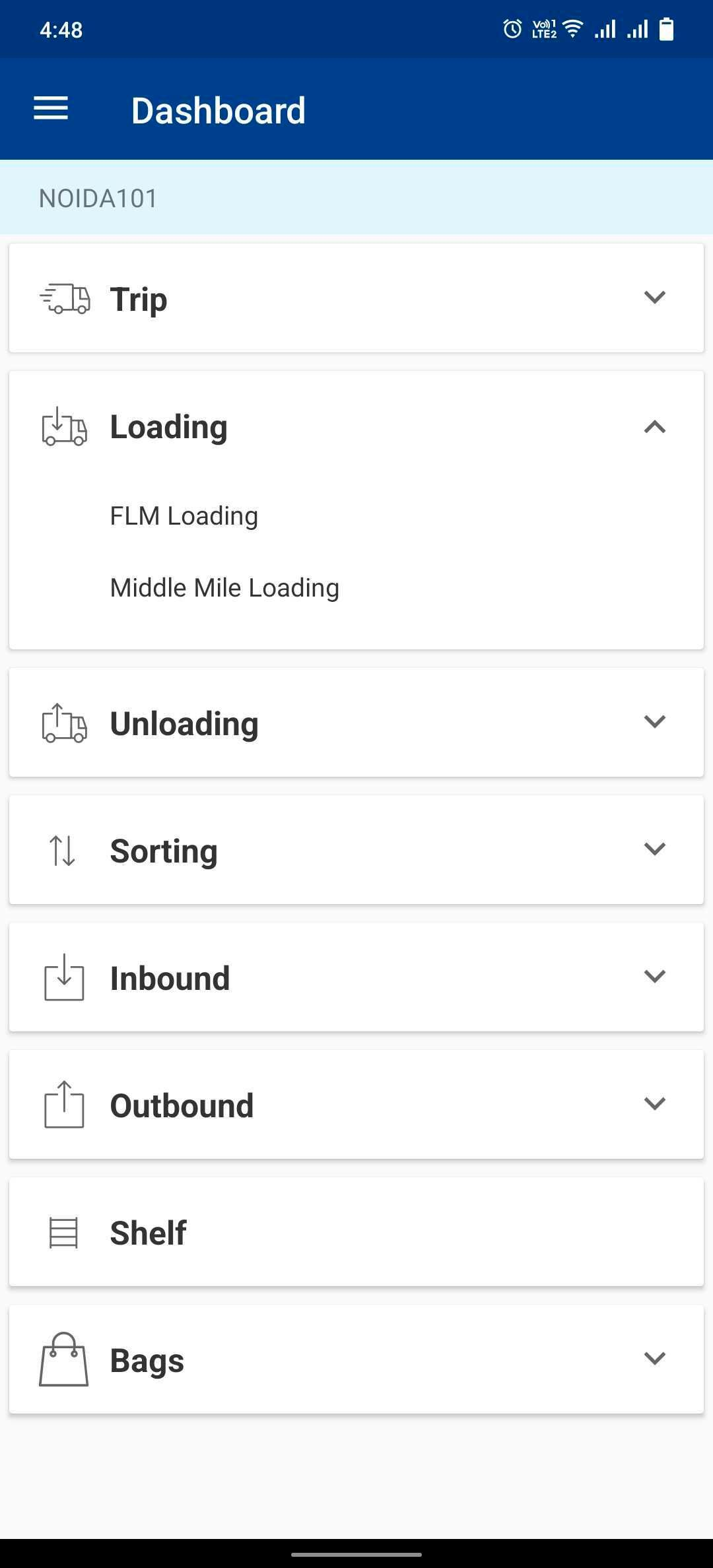
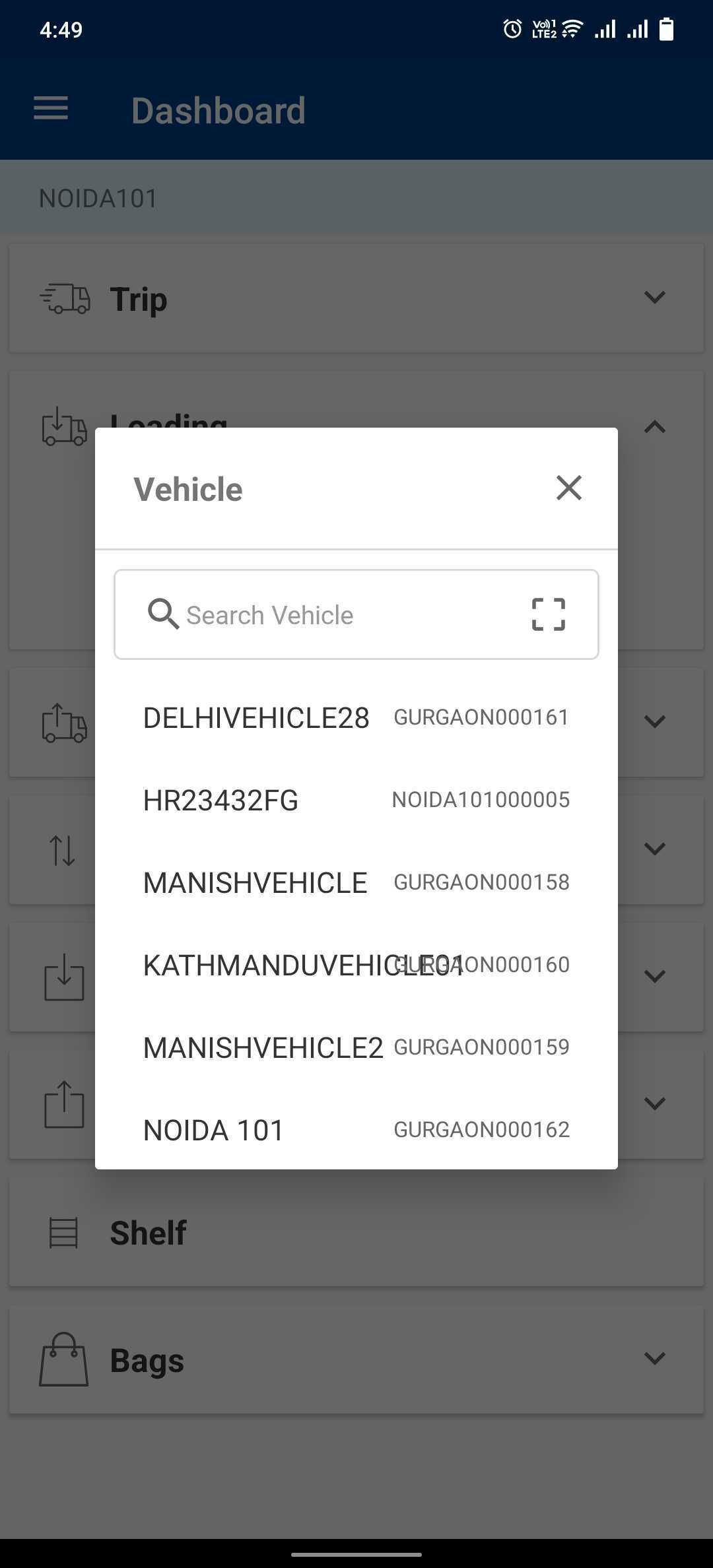
- Select Vehicle and click on Start Loading.
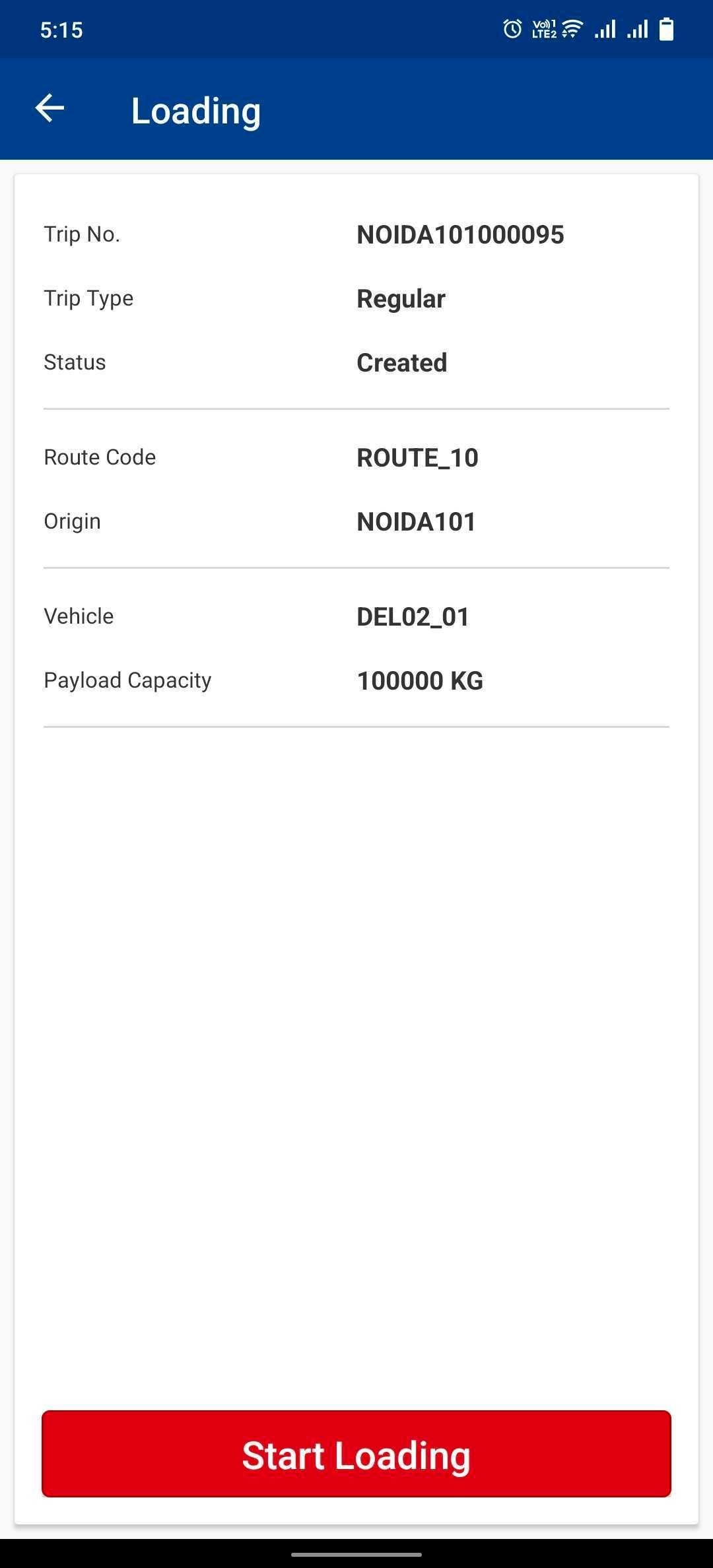
- Click on Select Hub and select the destination hub.
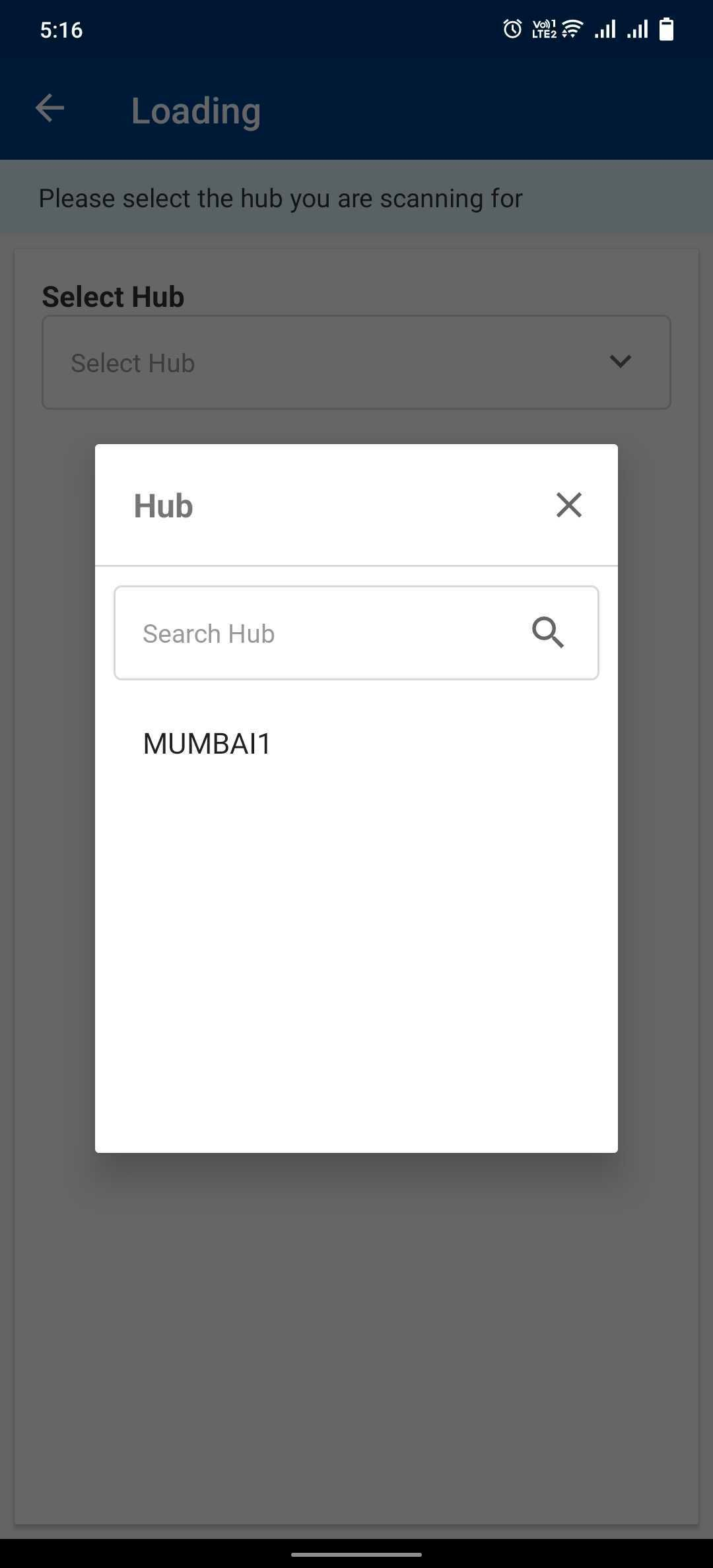
- Enter Bag No./ Waybill No. and click on the '+' sign or tap the given area to scan the waybills.
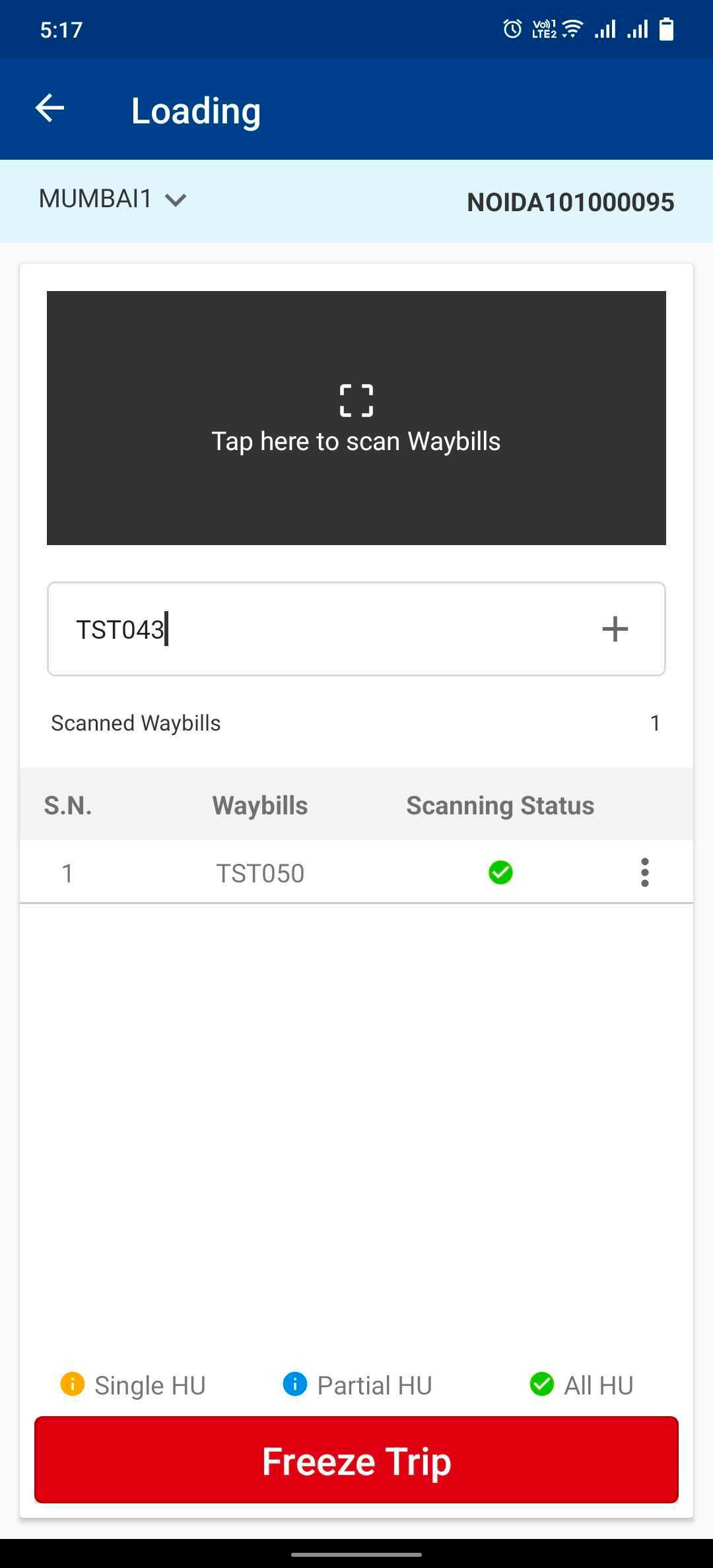
- Click on Freeze Trip and click on Okay, in the dialog box, to freeze the trip successfully.
Was this article helpful?