
Hamburger menu ( )
Article 0bXPBCl1 · sourceTo log in the hub ops app, provide the organisation name and enter the log in details.
Table of Content:
- Hamburger menu (:hamburger-dashboard:)
- Trip
- Loading
- Unloading
- Sorting
- Inbound
- Outbound
- Shelf
- Bags
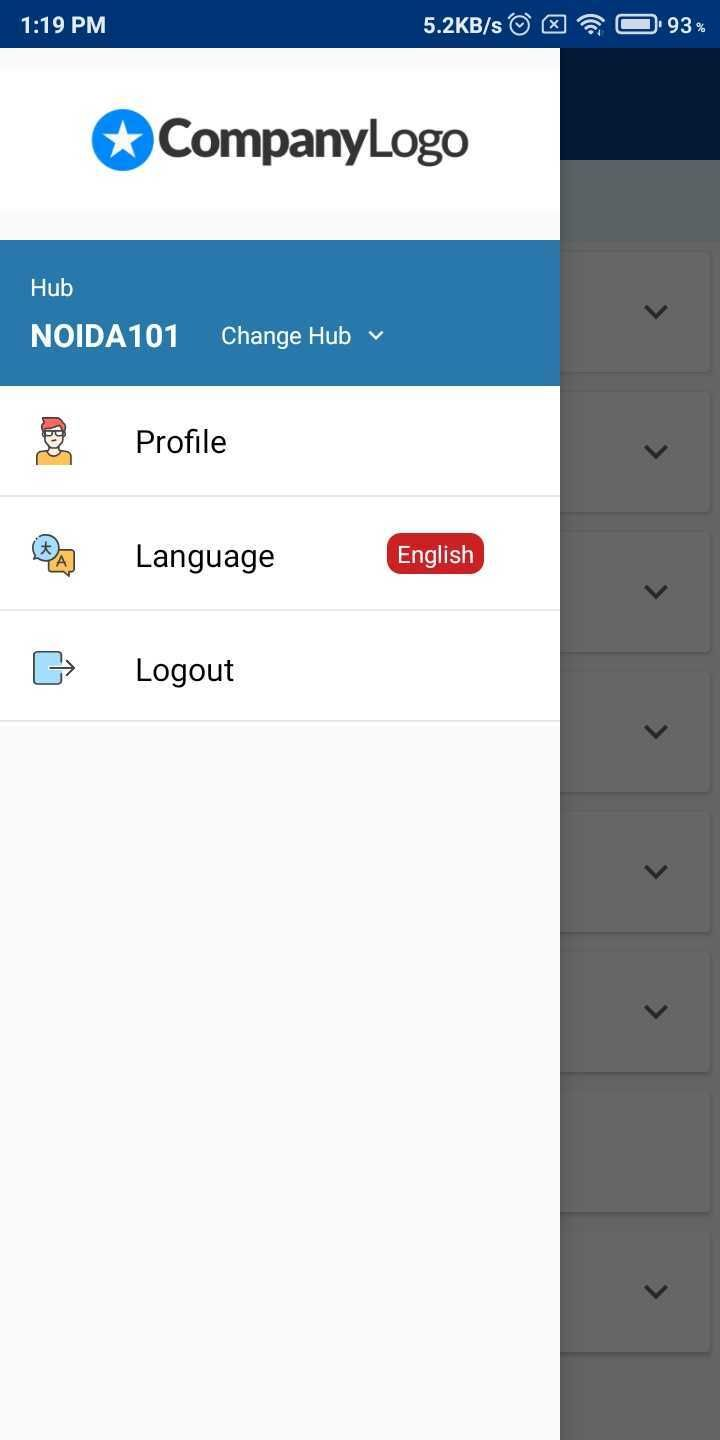
Hamburger menu ()
- Change Hub option allows you to select the required hub.
- The user can view their profile.
- Select the language of your choice.
- The Logout option is also provided.
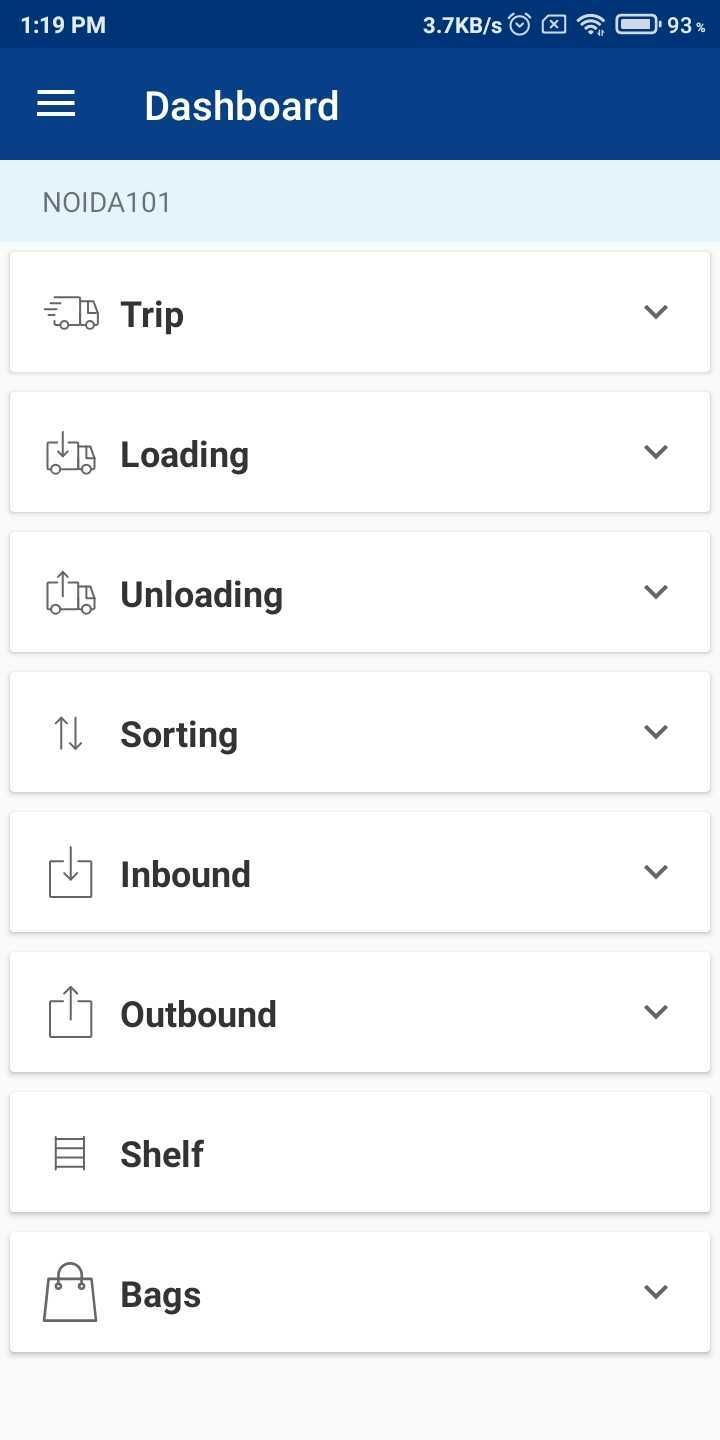
→ In the main dashboard
Trip
-
Click on Trip for the following options.
- Create option allows the user to create the trip.
- Depart option allows the user to depart a vehicle for the trip.
- Receive option allows the user to receive the trip at the destination hub.
- Click on Close option to close the trip.
- FLM Custom Trip option allows the user to directly create the trip from the app.
- Assign Rider option allows the user to assign a rider to a trip.
Loading
-
Click on loading for the following options.
- FLM Loading option loads the consignments to the vehicle, at the destination hub for the last mile processes.
- Middle Mile Loading option allows the user to load the consignments to the vehicle at the origin hub.
Unloading
-
Click on Unloading for the following options.
- FLM Unloading option allows the user to unload the consignments from the vehicle, at the origin hub for the middle mile processes.
- Middle Mile Unloading option allows the user to unload the consignments to the vehicle at the destination hub.
Sorting
-
Click on Sorting for the following options.
- 1st Level option sorts the orders based on destination type (zonal, national, local or hyperlocal).
- 2nd Level option sorts the orders based on region (north, south, east or west).
- 3rd Level option sorts the orders based on destination bagging hub.
Inbound
-
Click on Inbound for the following options.
- Inscan option scan the consignments at the hub.
- Click on Gate In for the successful entry of the vehicle at a particular gate number.
- Click on Assign Dock to assign a particular dock to a vehicle.
- Click on Dock Inscan for the in scanning of the vehicle at the dock.
Outbound
-
Click on Outbound for the following options.
- Click on Dock Outscan for the out scanning of the vehicle at the dock.
- Click on Gate Out for the successful exit of the vehicle at a particular gate.
Shelf
- Shelf option shows the consignments which are kept and stored at the hub for any particular reason.
Bags
-
Click on Bags for the following options.
- Click on Create Bag to create a new bag for the consignments at the origin hub.
- Click on De-bag to open a bag at the destination hub.
Was this article helpful?