
Method 1 → V2 Dashboard
Article e1TaNQ-- · sourceDescription : This page covers the process of dock in and dock assigning of a vehicle at the destination hub.
This process can be also be completed by the V2 dashboard and hub ops app as well.
- Method 1 → V2 Dashboard
- Method 2 → Hub Ops App
Method 1 → V2 Dashboard
- In the dashboard, click on Mediums → Vehicle.
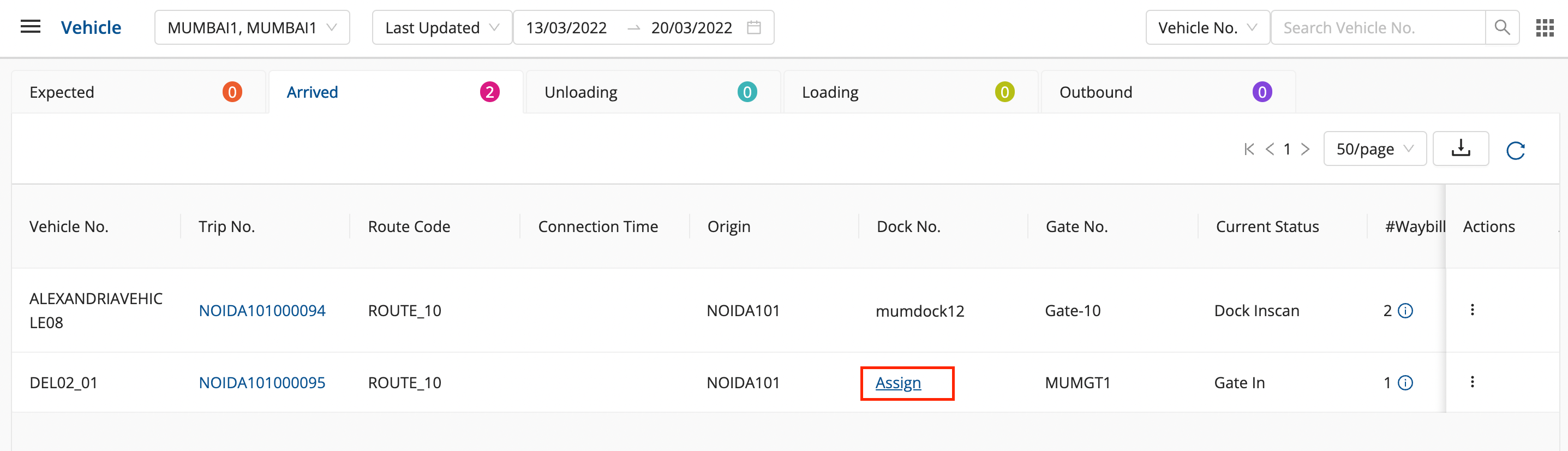
- In the Arrived section, for the required vehicle, click on the assign.
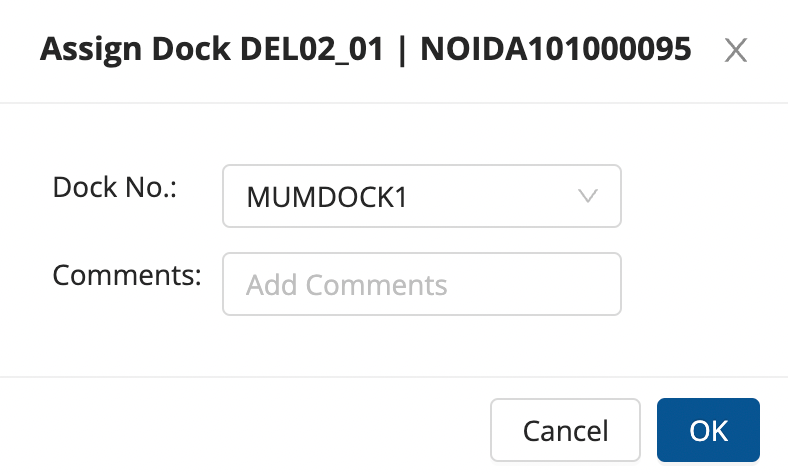
- Enter Dock No. and any additional comments, if required, and click on ok to dock in the vehicle successfully.
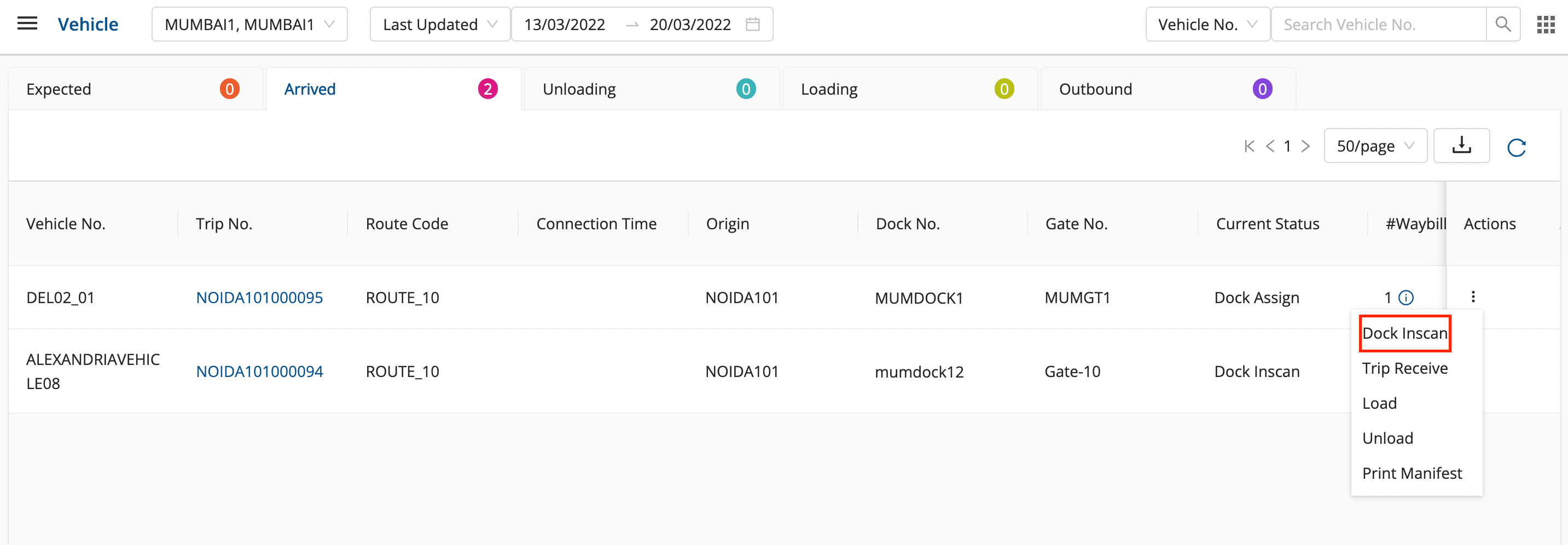
- In the Arrived section, for the required vehicle, click on the three vertical dots in the action column.
- Click on Dock Inscan.
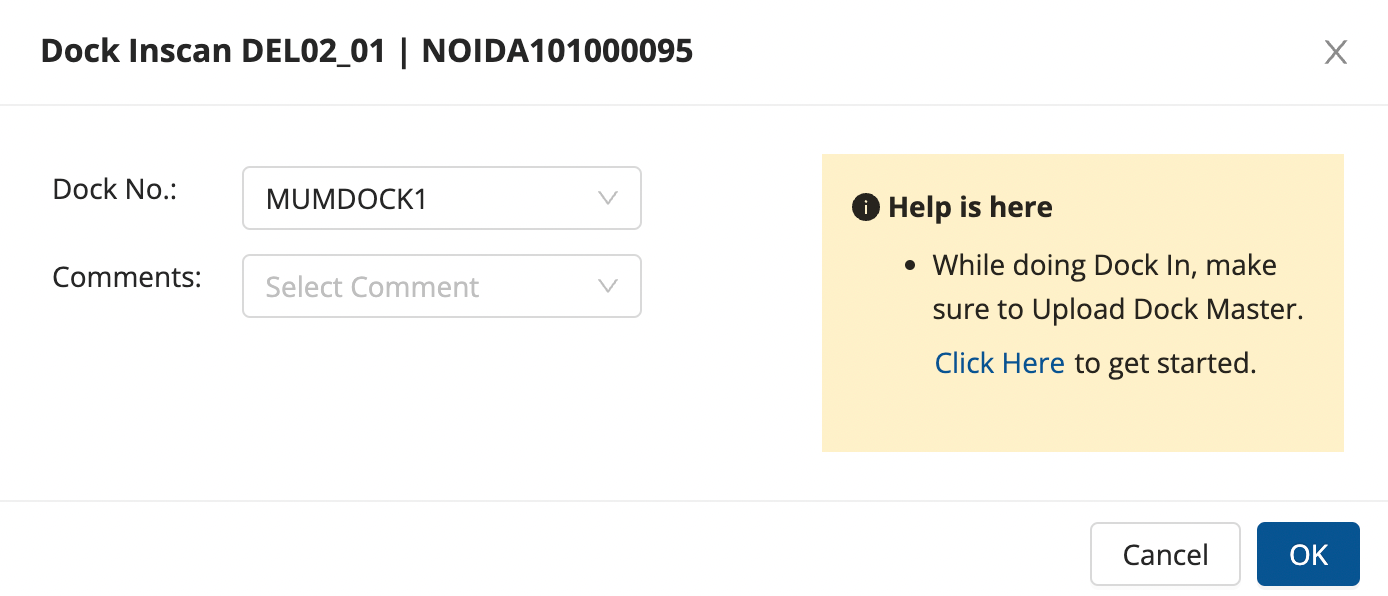
- Enter Dock No. and any additional comments, if required, and click on ok.
- The vehicle is dock in scanned successfully.
Method 2 → Hub Ops App
We need to change the hub to the destination hub from the hamburger menu.
- In the dashboard, click on Inbound → Assign Dock.
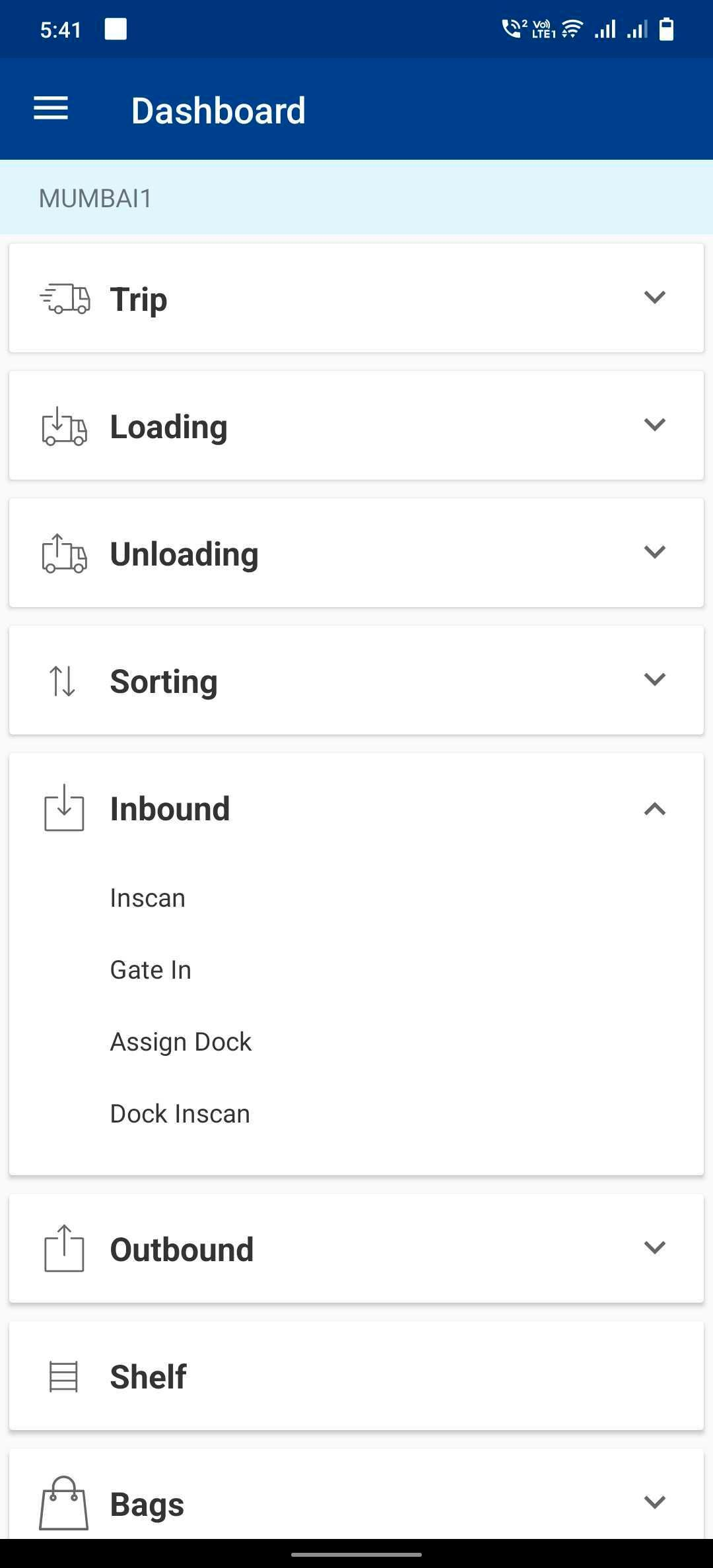
- Enter Vehicle, Dock No., and any additional comments, if required.
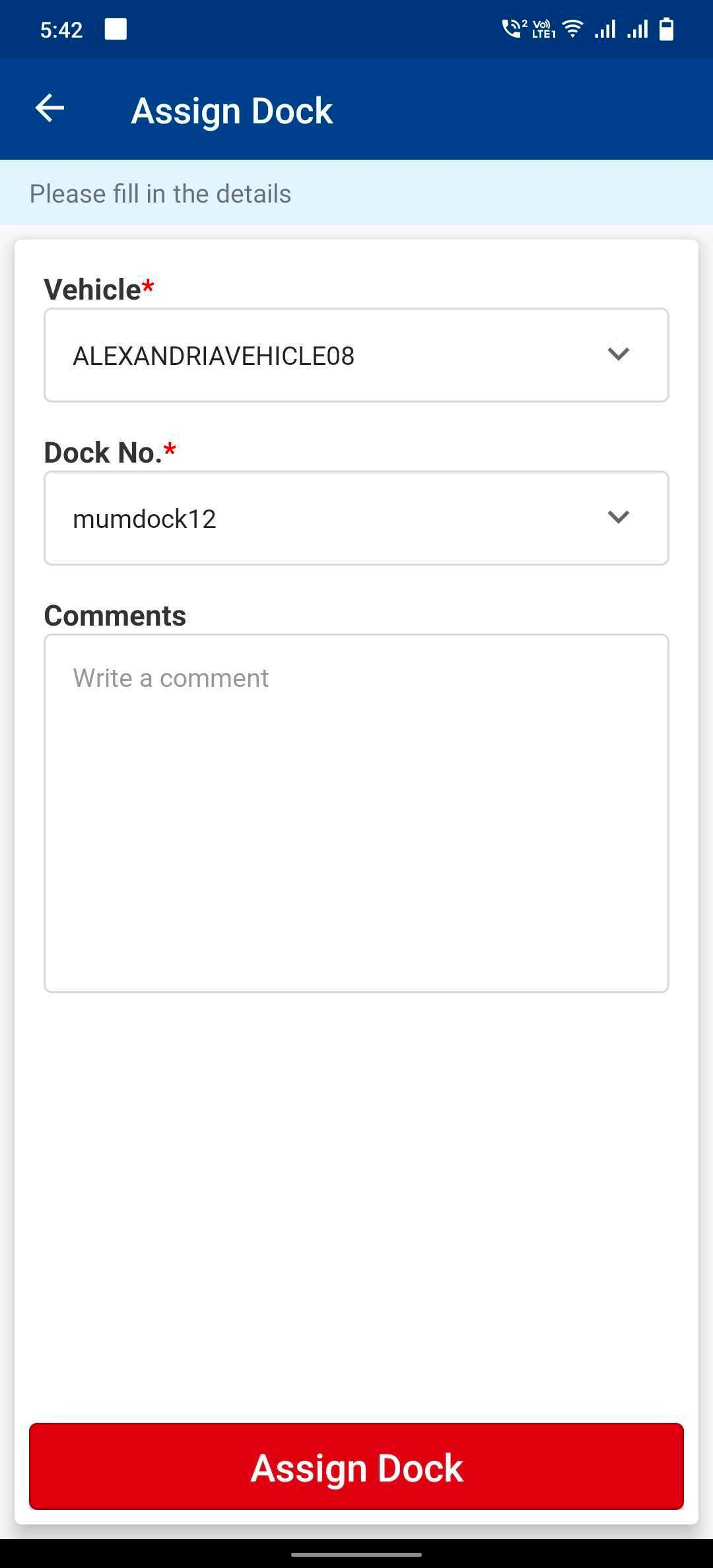
- Click on Assign Dock and the dock has been assigned to the vehicle successfully.
- Again, click on Inbound → Dock Inscan.
- Enter Vehicle, Dock No., and any additional comments, if required.
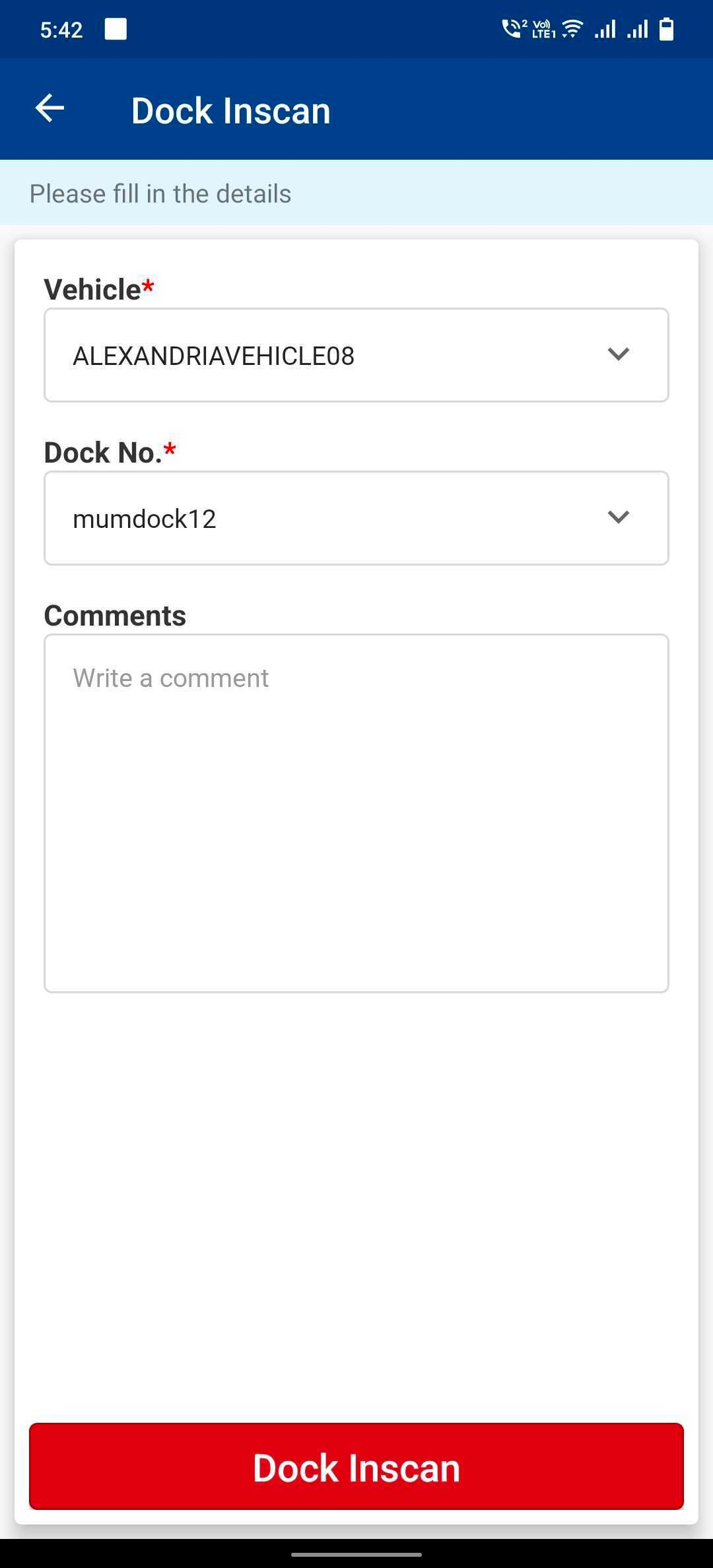
- Click on Dock Inscan and the vehicle has been docked in successfully.
Was this article helpful?