
Method 1 : Consignments Dashboard
Article xZrwGU2i · sourceMethod 1 : Consignments Dashboard
On the Consignments Dashboard :
- Click on the Hamburger Menu () → FLM () → Shelf Management
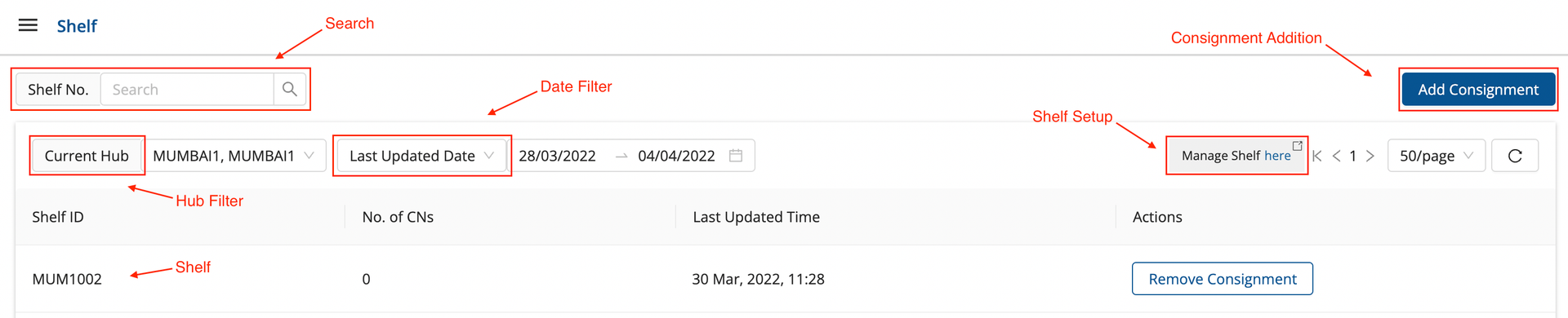
- The user can view the shelves on the dashboard, with the count of consignments present in them and the last updation time.
Consignments can be added to a shelf in the following manner:
- Check for the selected hub on the
Hub Filter. - Click on the
Consignment AdditionButton available in the top right corner of the screen. - A window pops up. Search for the shelf you want to add consignment to in the search bar. When selected, the option to add consignment enables.
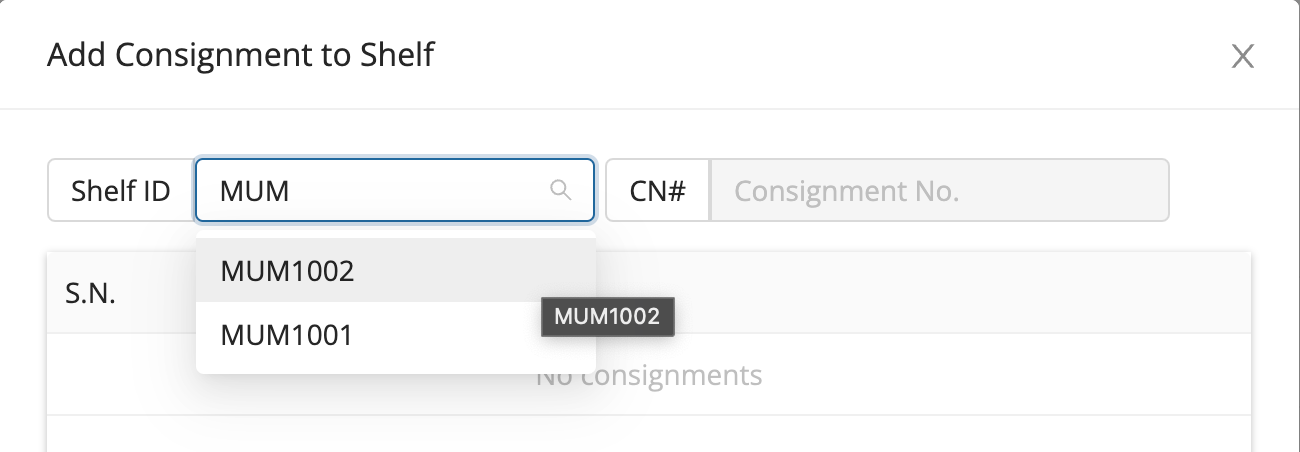
- Add the consignment number in the
CN#field. - Click on
AddButton. - The consignment is now added to the selected shelf.
Method 2 : Hub Ops App
-
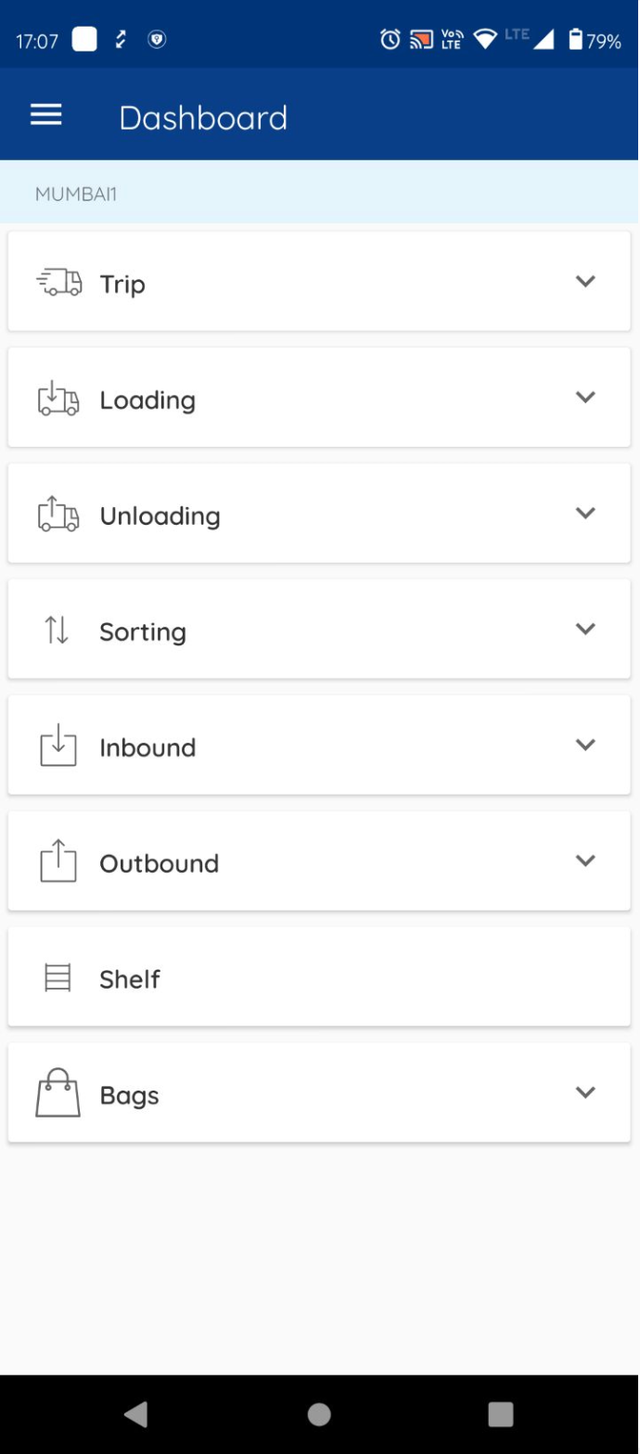
On the Hub Ops App, click on the Shelf section.
-
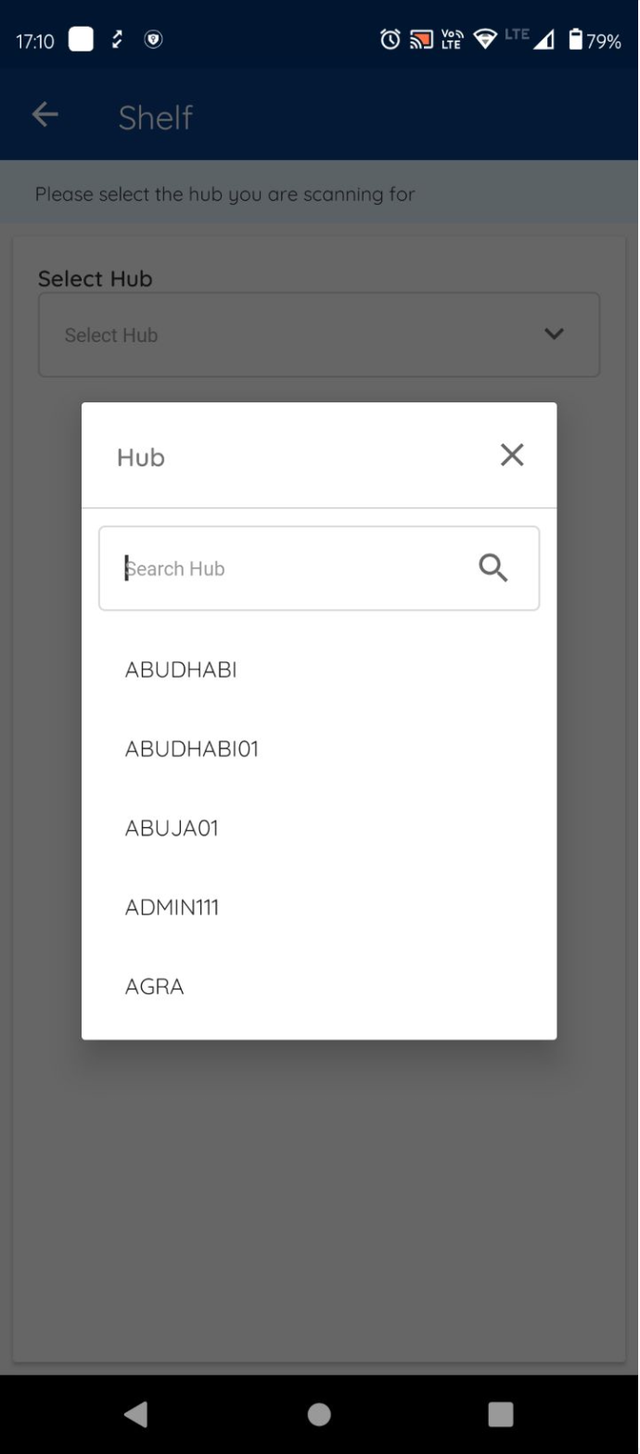
Select the hub you want to manage the shelf at.
- On the Shelf Screen, the user can see the list of shelves available at the hub.
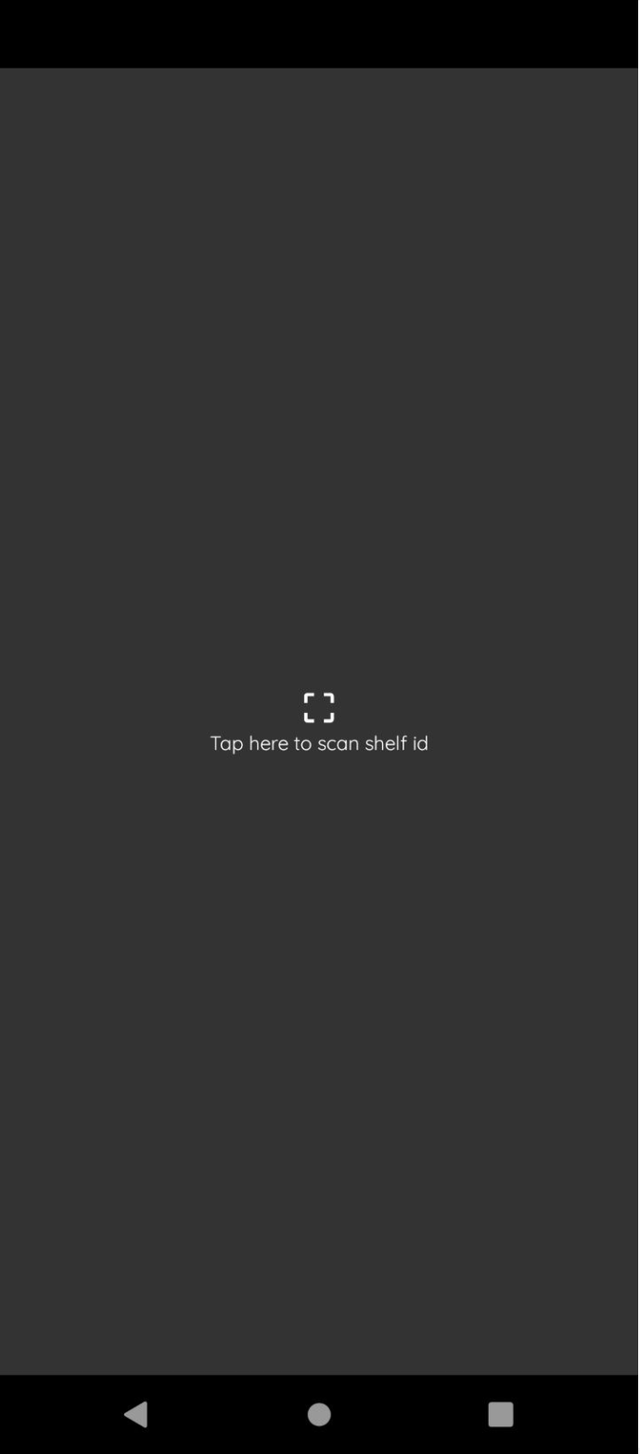
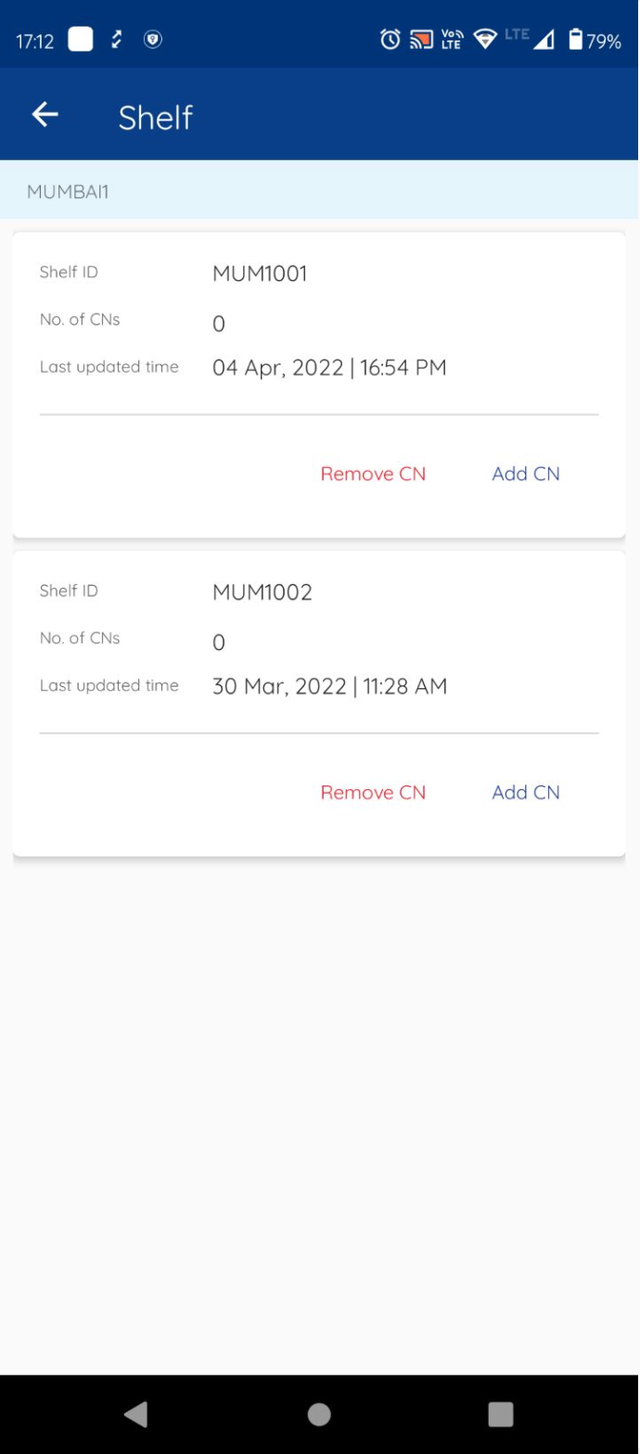 4. Click on Add CN Button, a scanning screen shows up. Scan the shelf ID.
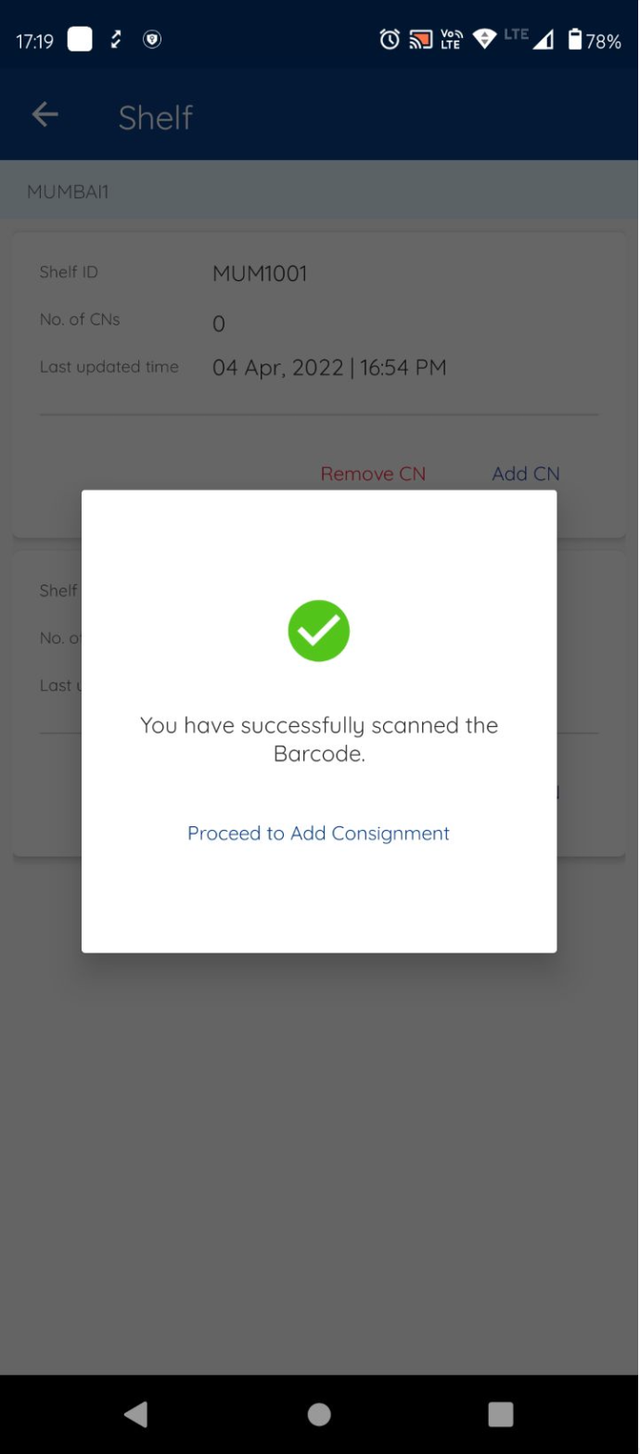
- Upon successful scan of the shelf Label, this screen comes.
- Click on ‘Proceed’. Scan the Consignment label and click on Add.
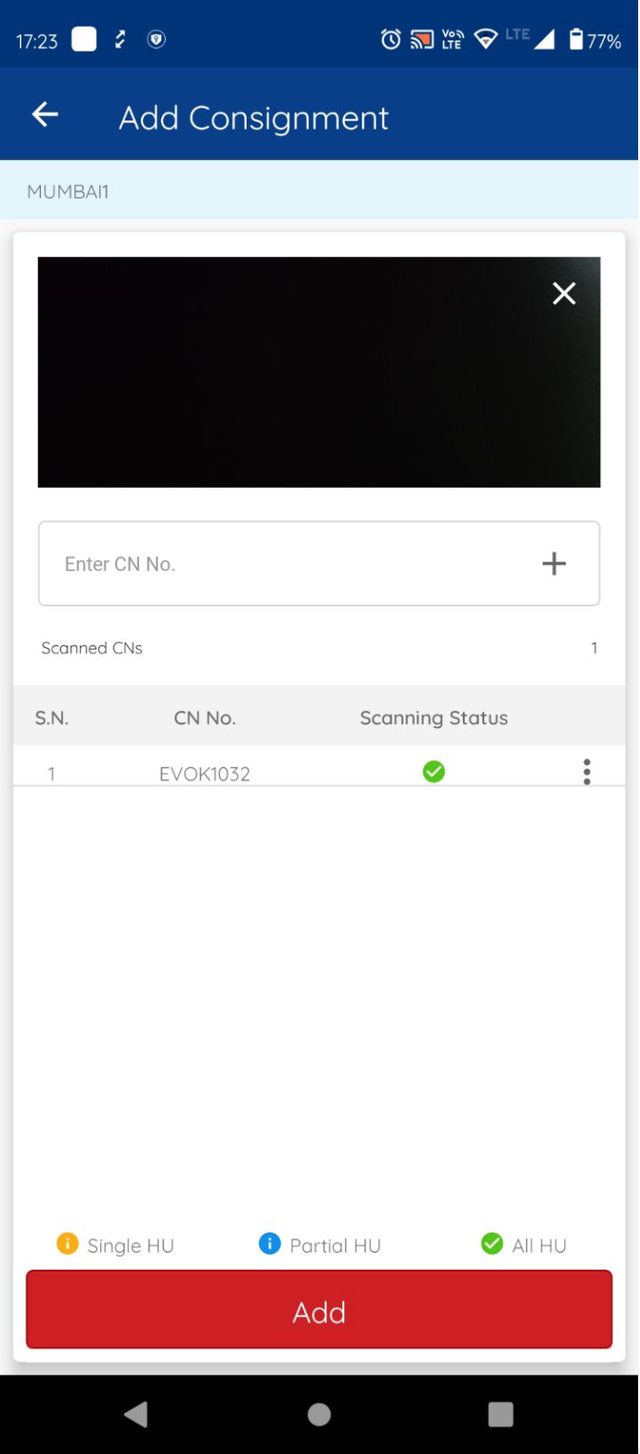
- The consignment gets successfully added and the user returns to the Hub Ops App Dashboard.
Was this article helpful?