
Instructions
Article JA9t_SuY · sourceThis feature allows the user to create and save addresses in the system, and then directly add it by searching any of its components while creating a single consignment/pickup
Instructions
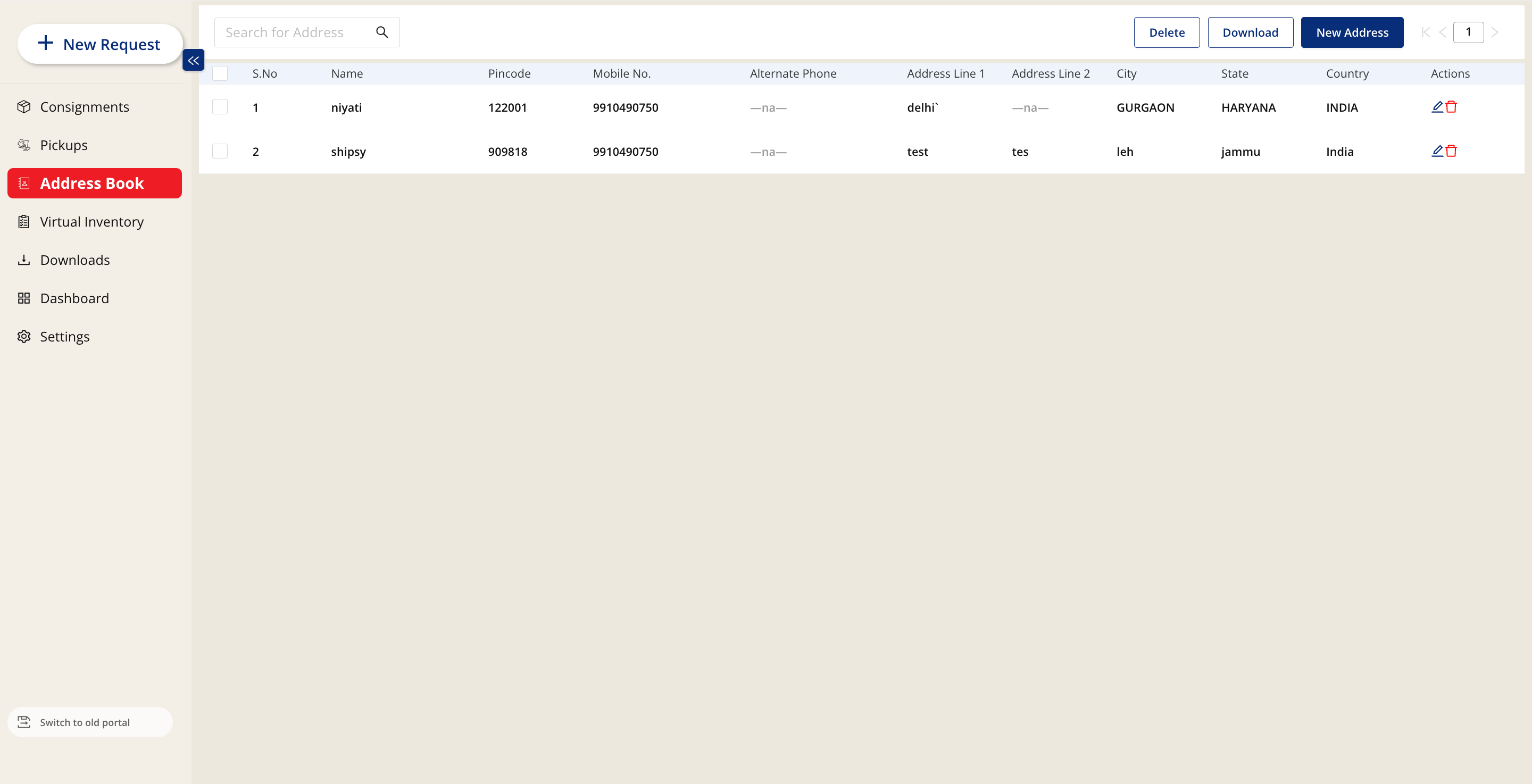
- Navigate to the address book tab of the customer portal
-
Click on the New Address button
- Click on single for single address
- Click on bulk upload to upload multiple addresses at once
-
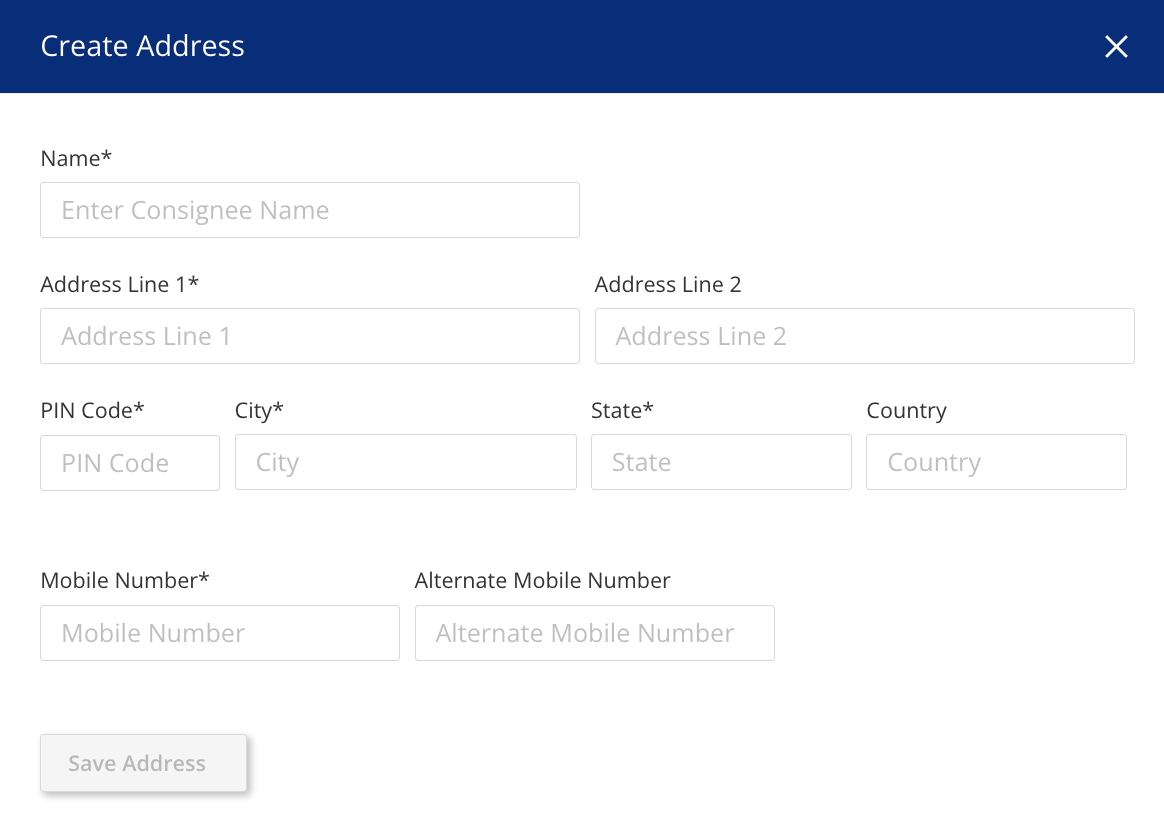
The single upload option triggers a pop-up style form where the user is required to input the following details:
- Name
- Address Line 1
- Address Line 2
- Pin Code
- City
- State
- Country
- Mobile Number
- Alternate Mobile Number
-
Once the user has input all the necessary details, they can click on the save address button. This successfully saves the address
-
The bulk upload option triggers a pop-up where the user will be required to upload a csv file with all the addresses they want to add
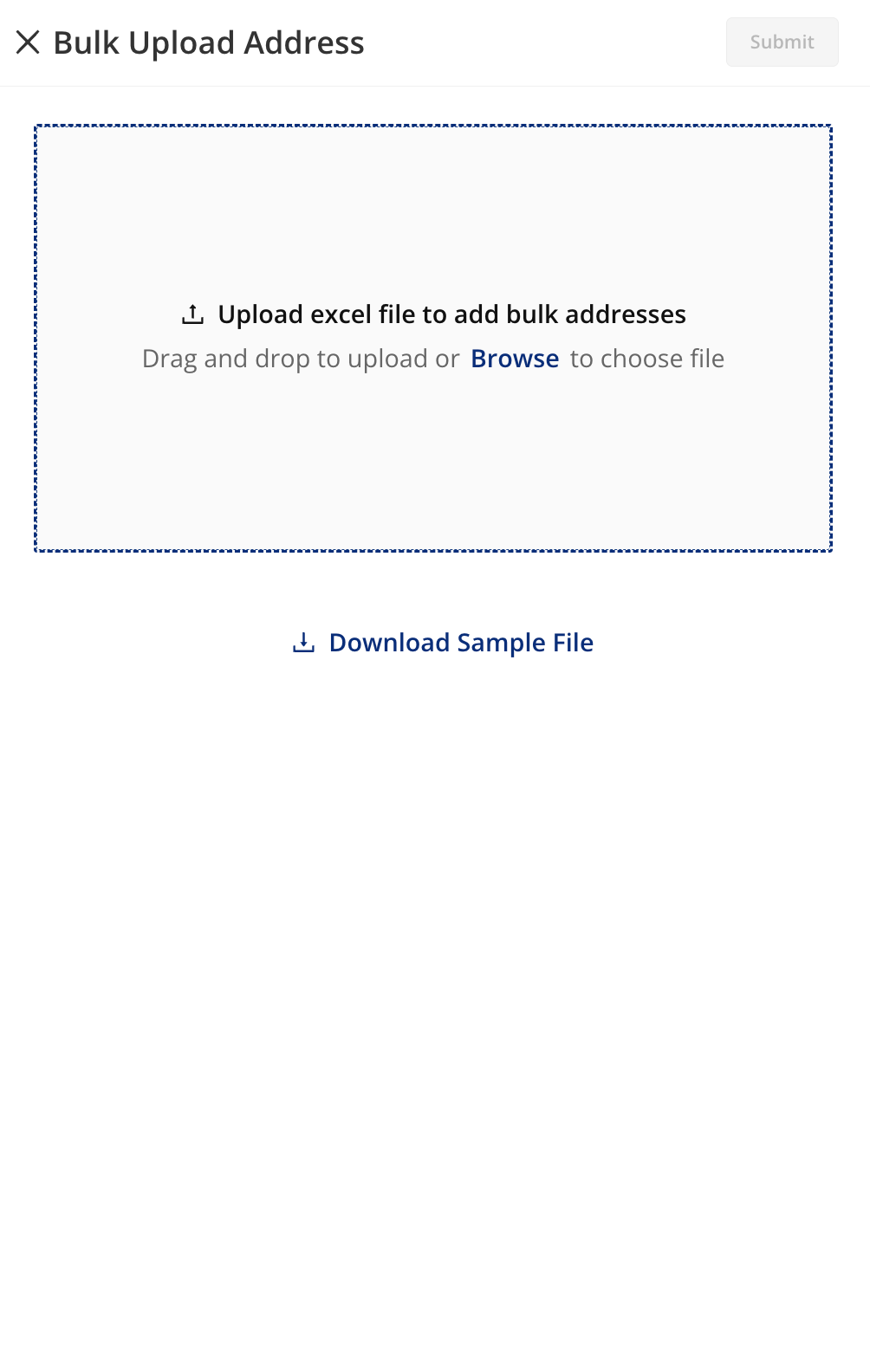
- To do this they will first have to download the sample file, fill all the necessary details, export it as a csv and upload it
- After upload is complete, user can click on submit. This successfully uploads all addresses which are then reflected in the address book
Was this article helpful?