
Pick up - Flow for a Driver
Article 8NSvWCYd · sourceTable of Contents
Prepare PRS
Pickup Task list
Picked up / Non Pickup
Steps involved in picking a consignment
PRS script will change the status of all the CNs in pickup awaited state or Non picked up state to Pickup Scheduled. PRS script also generates pickup IDs and assigns them to a single CN or a group of CNs. Each pickup ID also has the hub code allotted to it. The riders mapped to the hub will complete the pickup using the steps below.
Prepare PRS
There are two ways in which a rider is assigned to a pickup ID.
Via Smart Track:
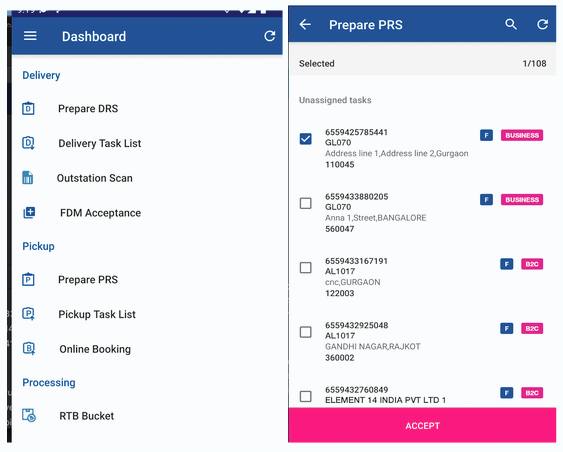
The pickup IDs will start reflecting in the Smart App in the ‘Prepare PRS’ section. The rider can navigate to prepare PRS, choose and accept the pickup IDs based on his/her feasibility.
Then the pickup ID is assigned to the rider and he/she will be responsible for picking up the consignment.
Ops Dashboard:
The hub manager can assign a rider for a pickup ID from Ops dashboard > Manage > Pickup section.

Pickup Tasks List
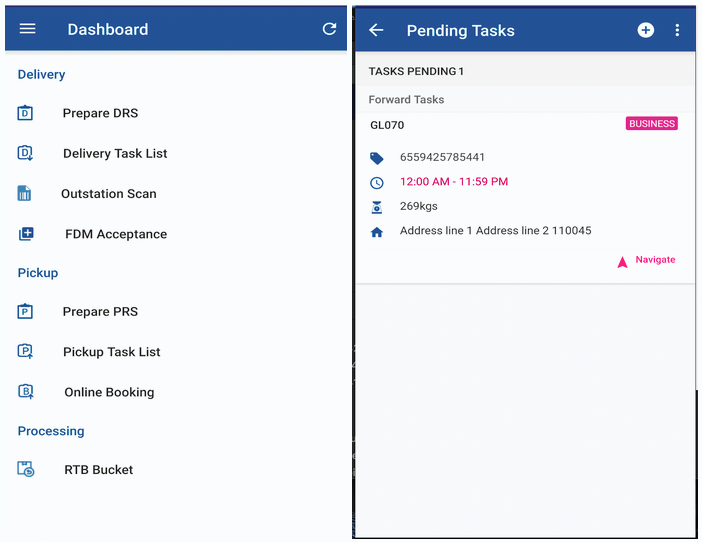
Once the rider accepts a pickup ID or the hub manager assigns it to a rider, it will start reflecting in ‘Pickup Tasks List’ of the smart track app.
The pickup ID will only reflect when logged in using the rider credentials.
Pick up/ Non pick up
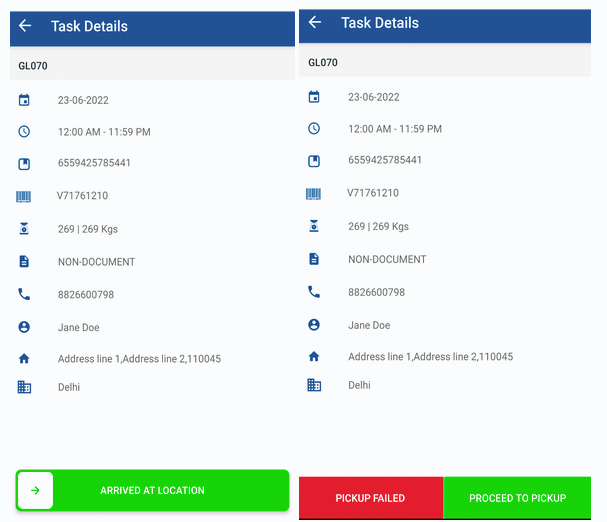
The rider reaches the location and opens the corresponding task in the ‘Delivery Task List’. He/She will mark ‘Arrived at Location’. Then he will get the option to choose pickup completion or pickup failure.
Pickup failure:
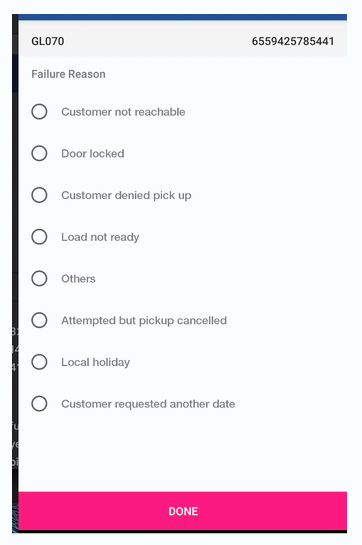
The driver can mark pickup failure by choosing ‘PICKUP FAILED’, he/she needs to choose the failure reason accordingly.
The screen that is displayed with the NPR (Non Pickup Reasons) is as below.
PROCEED TO PICKUP:
The driver can mark pickup completion using the ‘PROCEED TO PICKUP’ option. Once this option is chosen, there will be options to mark partial pickup or complete pickup.
Partial pickup:
A pickup ID can have multiple CNs, if all the consignments are not ready for pickup, the rider can mark partial pickup completion. To do this, the rider will navigate to ‘+’ sign and scan the consignments that are ready for pickup. This is called partial pickup.
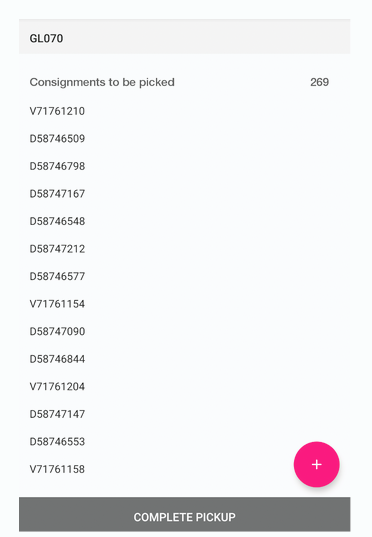
Complete Pickup:
If the rider scans all the CNs in the pickup ID, it will be a complete pickup. In the above screenshot, there are 269 consignments to be picked. If a few CNs are ready for pickup, then those will be scanned and partial pickup will be completed.