
Editing a Template
Article KEGksXJC · sourceUsers can refer to this document to understand how to edit already existing templates
Instructions: Follow these instructions to edit already existing templates
-
Navigating to Communication Config
- Click on the hamburger menu icon
- Select Setup and Communication Config from the sub-menu
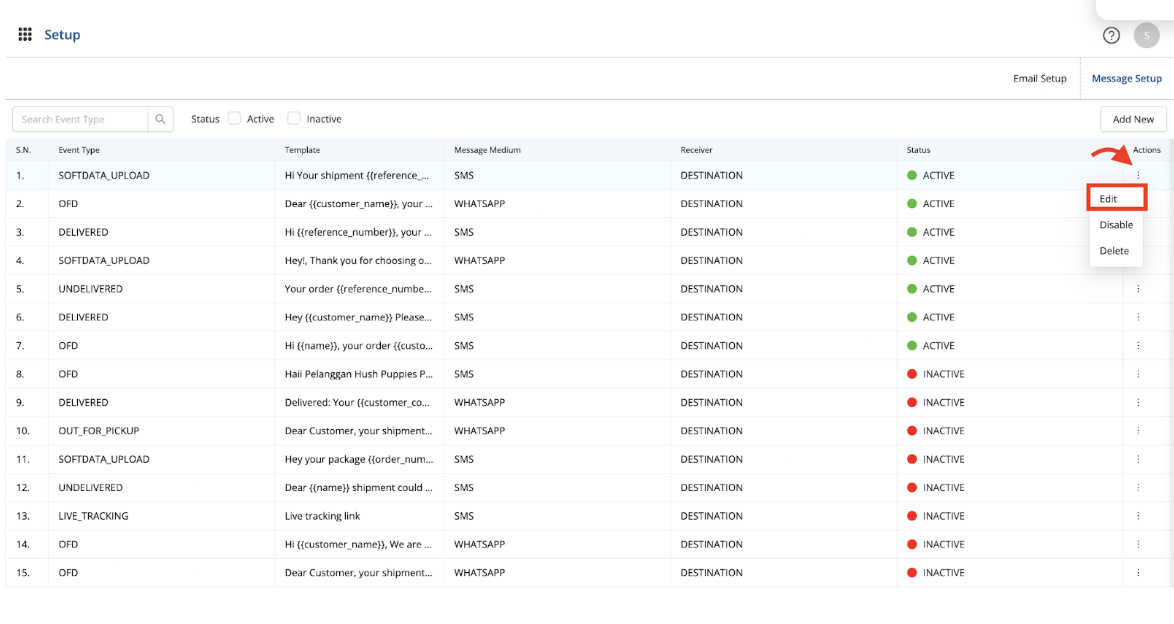
- Users are then redirected to the templates list view page. This page has two sub tabs - message setup and email setup. The default landing page is message setup
-
Editing an existing Template
- To edit a template, the user is required to click on the kebab menu icon under the actions column
- This opens a drop down menu including three options - edit, disable and delete
- To edit a template, click on edit
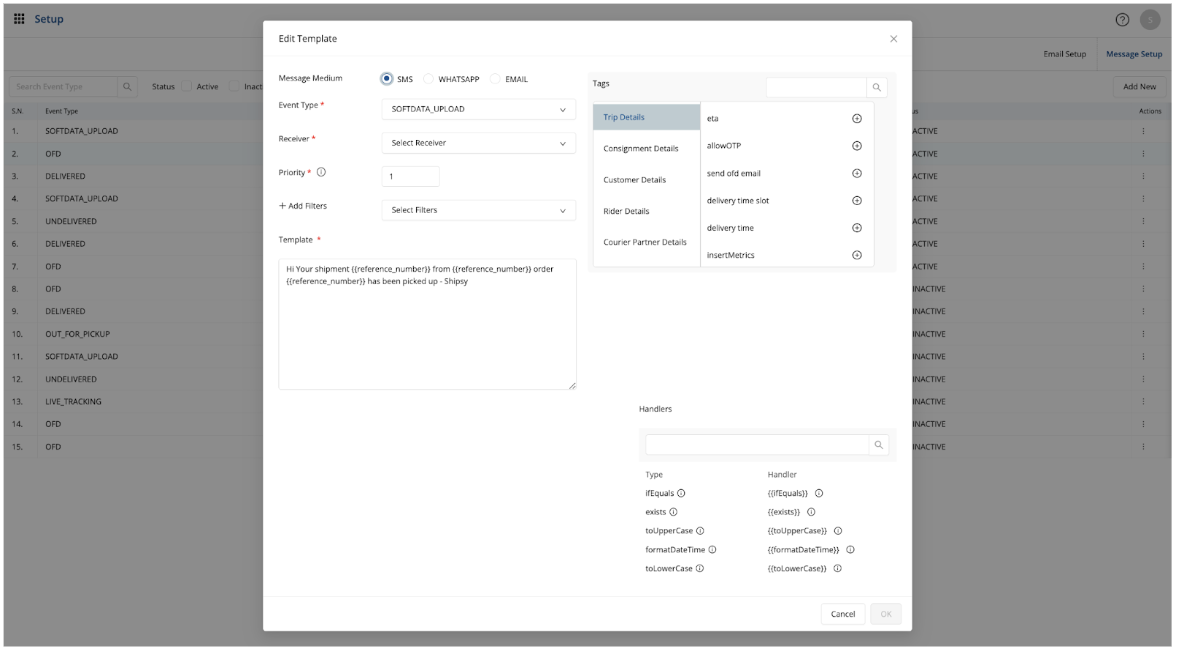
- This opens the edit template modal, which is very similar to the add template modal
- Here, the fields are the same as the add modal, so the user has the option to edit any field as per their requirement
- Once the user has configured their template, they can click on OK and their template is saved.
Please note, while these steps are common for SMS and Whatsapp and allow the user to edit the config and the template, users can only edit the config of the email from this section. To edit the email template, the user will have to follow these steps:
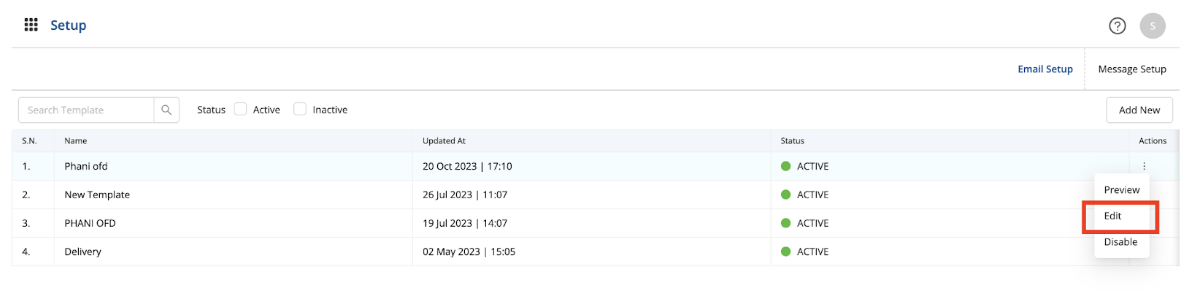
- Navigate to the Email Setup section
- To edit a template, the user is required to click on the kebab menu icon under the actions column
- This opens a drop down menu including three options - edit, disable and preview
- To edit the email template, click on edit
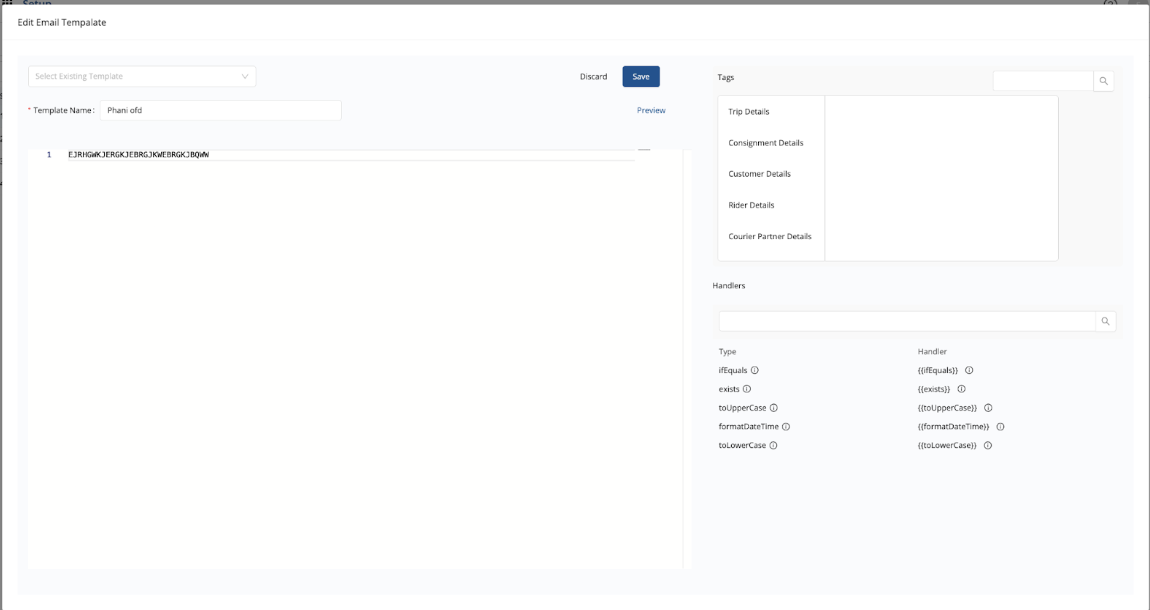
- This opens the edit template modal, which is very similar to the add template modal
- Here, the fields are the same as the add modal, so the user has the option to edit any field as per their requirement
- Once the user has configured their template, they can click on OK and their template is saved.
Was this article helpful?